

Appearance
Ticket Tags (Custom Tags)
This article will guide you through the process of using the ”Tags” feature of Fluent Support so that you can easily create Tags that can help you categorize the tickets and assign certain tags to mark any tickets.
How To Create Tags
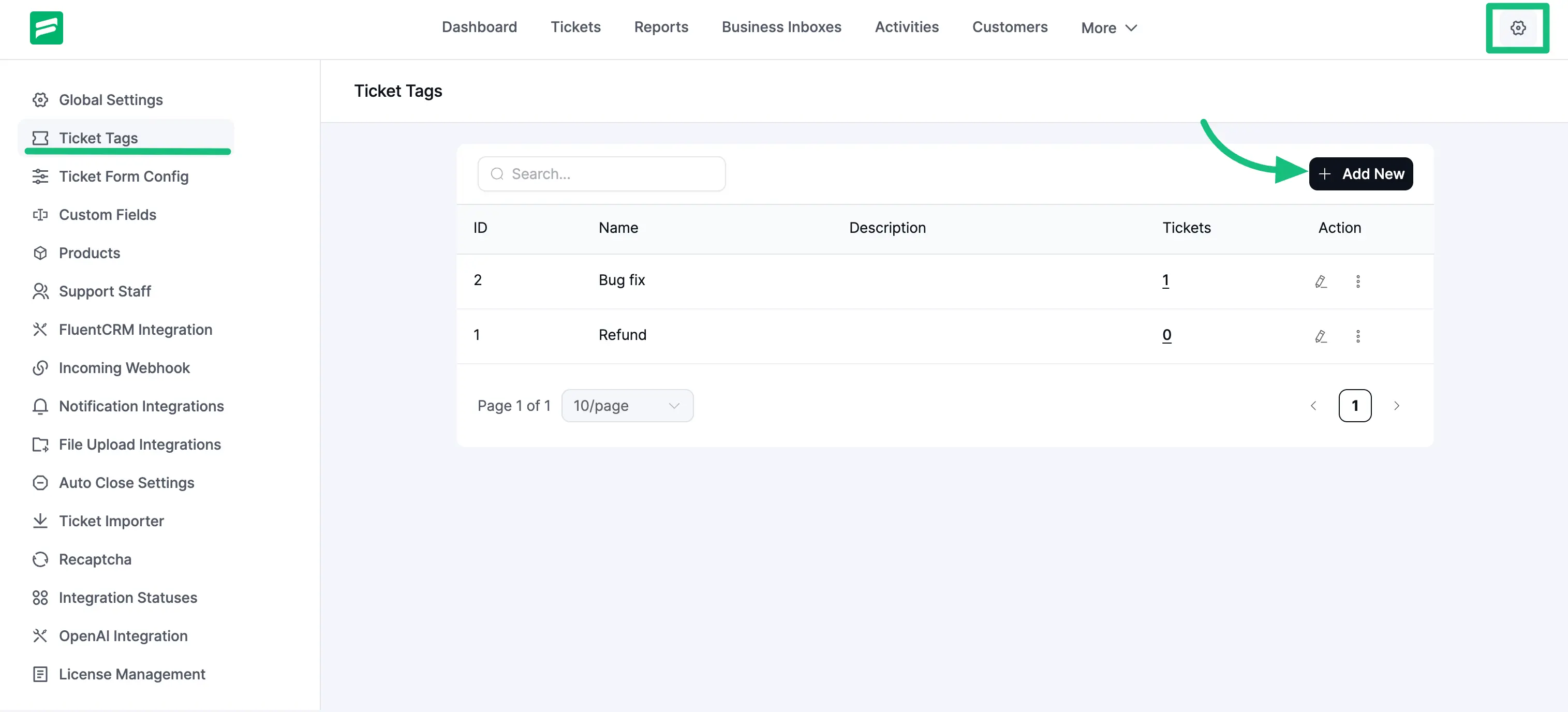
Go to your Fluent Support Dashboard & click on Global Settings.
Now, go to the Ticket Tags, and a ticket tag page will open where you need to click on the + Add New button to create a New Tag.
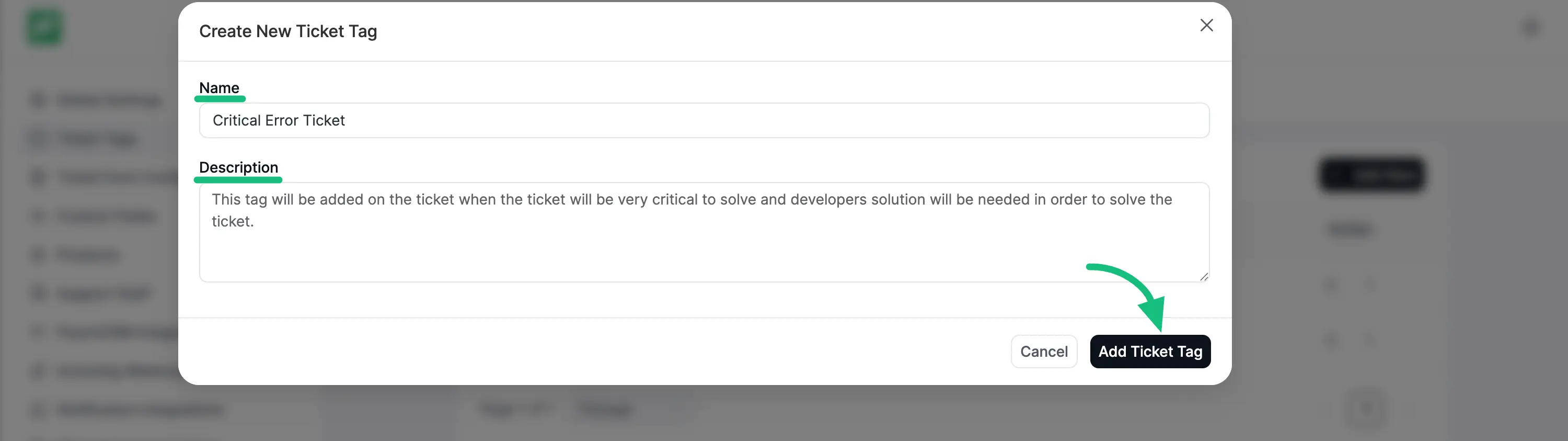
Add a relevant tag Title & tag Description as shown below, and click on the Save button. Your Ticket Tag will be created.
Also, you can edit/delete the tags by clicking the Pencil/Trash icons on the right-hand side under the Actions column.
For instance, I edited the Title from ‘Fluent Support’ to ‘Fluent Support PRO’. Similarly, you can Edit/Delete any of your products according to your needs.
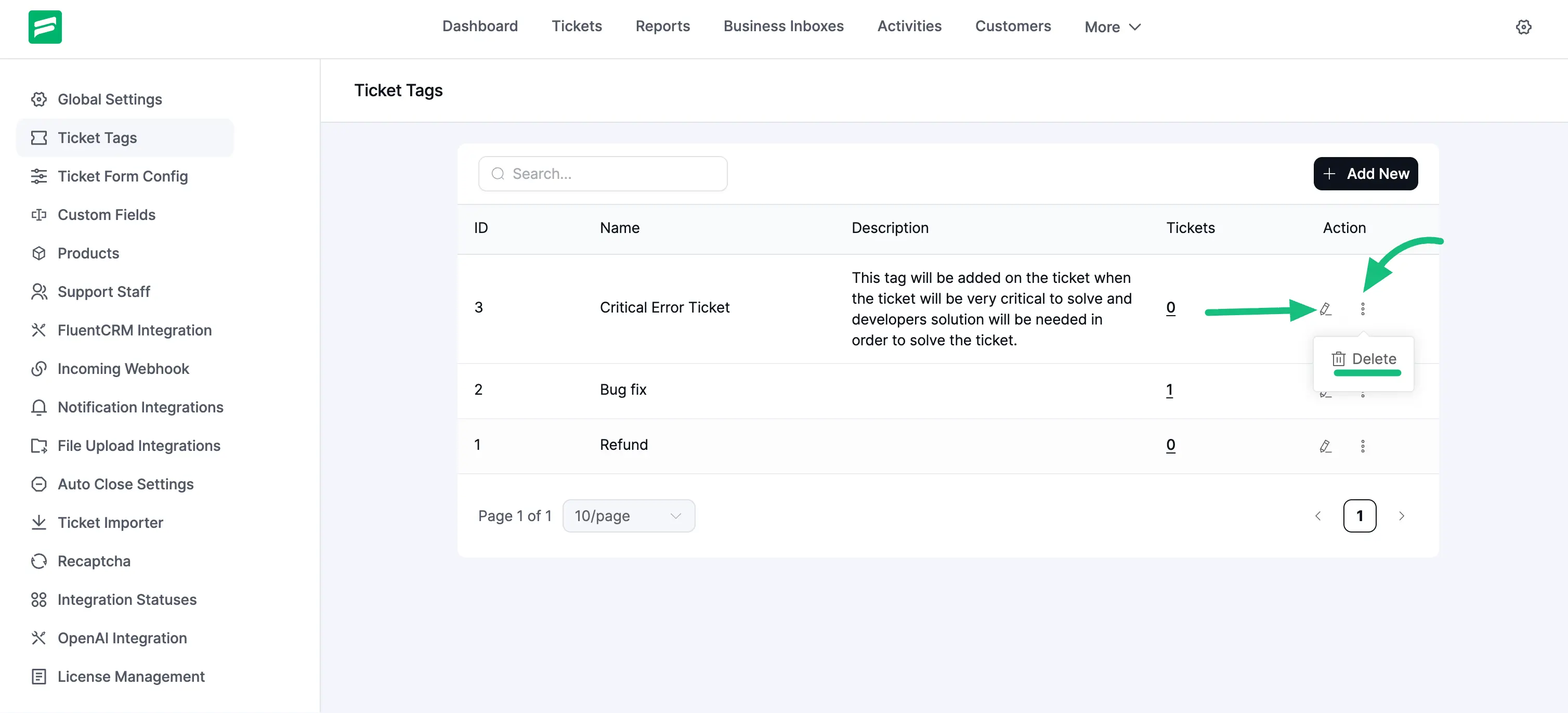
This way, you can create as many Ticket Tags as you want to categorize or organize your tickets!