

Appearance
Agents Reports
The ‘Agents Reports’ section provides an overall view of the entire support team's performance. It is typically accessible to support managers or administrators who need to monitor team efficiency.
Accessing Agents Reports
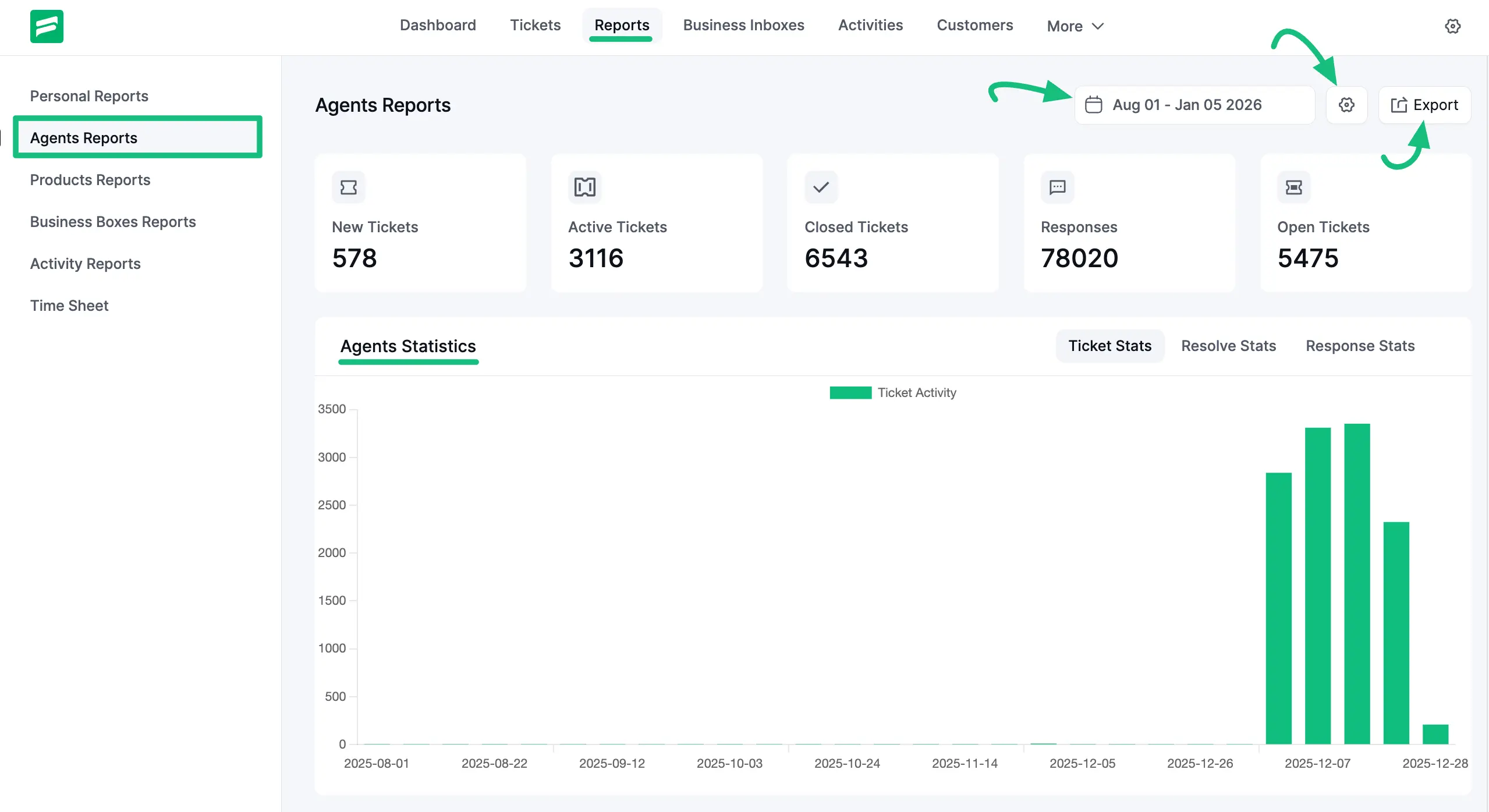
First, navigate to the Reports tab from the top menu bar and click on Agents Reports.
Report Features
- Quick Stats: Here displays all data for the entire team, such as New Tickets, Active Tickets, Closed Tickets, and Total Responses.
- Agents Statistics: A bar chart visualizing the team's output over time. You can switch views between Ticket Stats, Resolve Stats, and Response Stats to analyze different aspects of performance.
Include Agents in Summary
You can customize which agents appear in your reports by using the settings option.
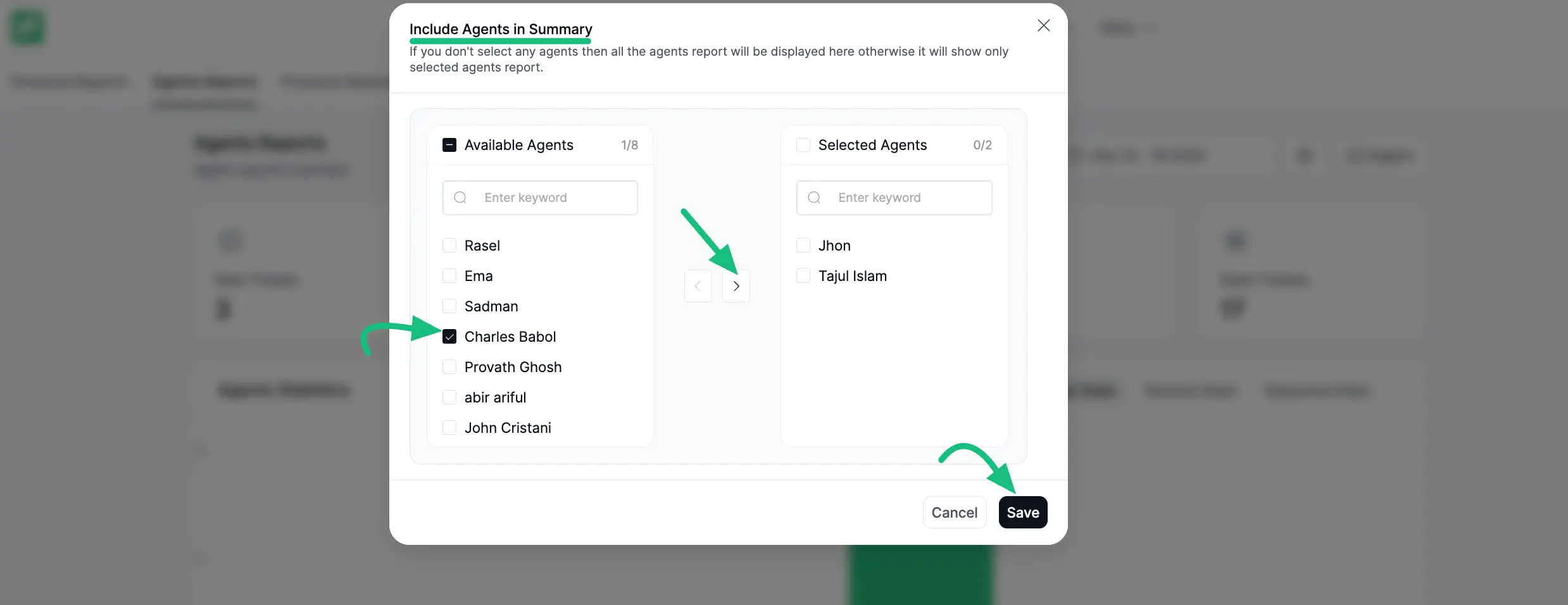
- Click the Settings (Gear Icon) located next to the date filter. A pop-up titled Include Agents in Summary will appear.
- Here, you can select specific agents from the Available Agents list and move them to the Selected Agents list.
- Use the checkboxes to select agents.
- Use the arrow buttons to move them between lists.
NOTE
If you don't select any agents, all agents' reports will be displayed by default.
Once you have checked the preferred agents, click the Save button to apply your changes.
Agents Report Summary
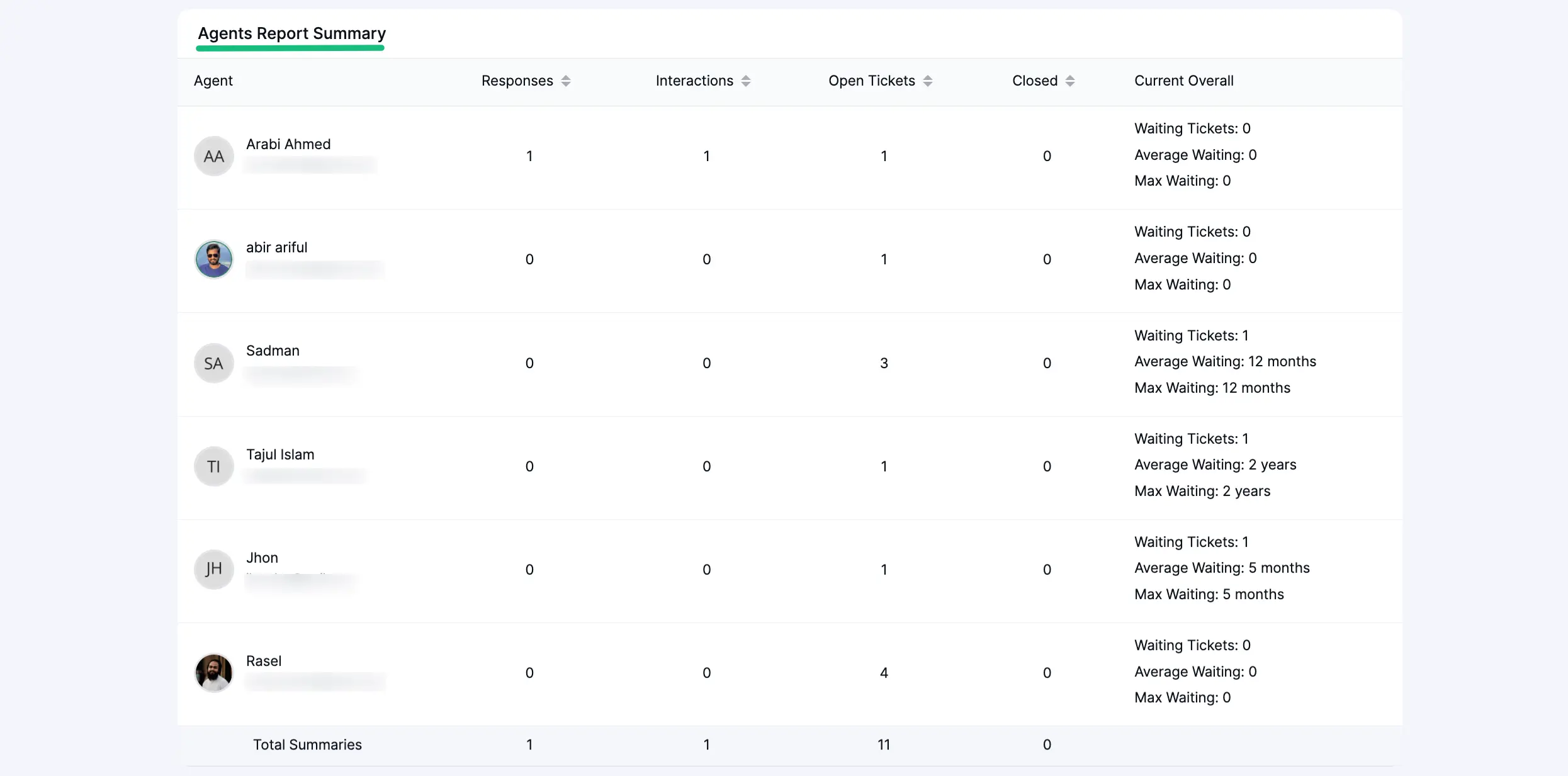
At the bottom of the page, you will find a detailed table listing each agent individually. For each agent, you can see:
- Responses: Total replies sent.
- Interactions: Total customer interactions.
- Open/Closed: Number of current open and closed tickets.
- Current Overall: Key efficiency metrics like Average Waiting Time and Max Waiting Time.
Export Data
You can download this report for further analysis by clicking the Export button located in the top right corner.