

Appearance
Dropbox Integration
Dropbox is a cloud storage platform that enables easy file storage, sharing, and seamless access and collaboration across multiple devices. Integrating it with Fluent Support allows automatic ticket attachment uploads, streamlining workflows. This article guides you through this integration process.
Dropbox Integration With Fluent Support
To integrate Fluent Support with Dropbox, follow the steps with screenshots below —
Create an app in Dropbox
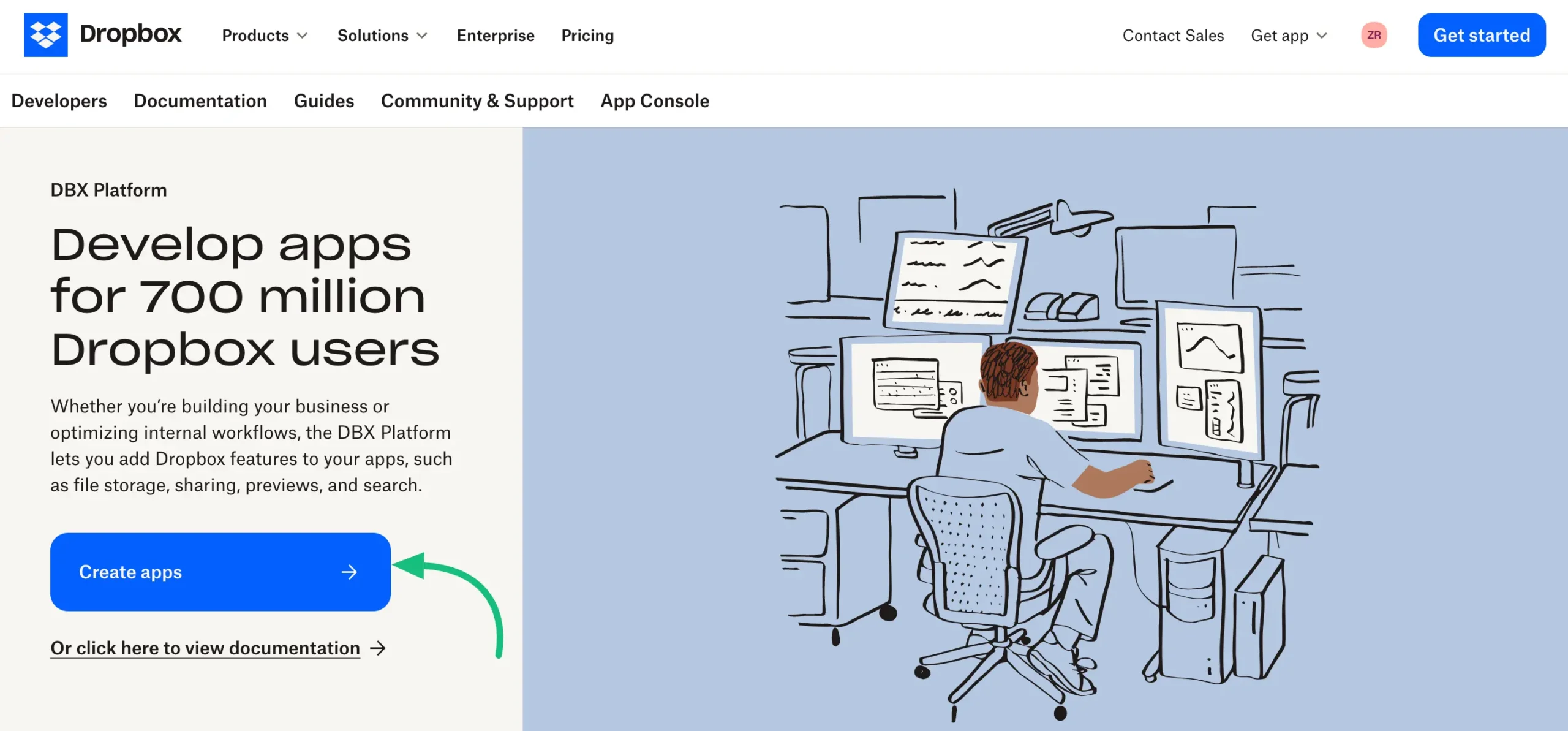
To create or Log in to your Dropbox , click here. Then, go to your Dropbox Account developer section and click the Create Apps button to create an app in Dropbox.
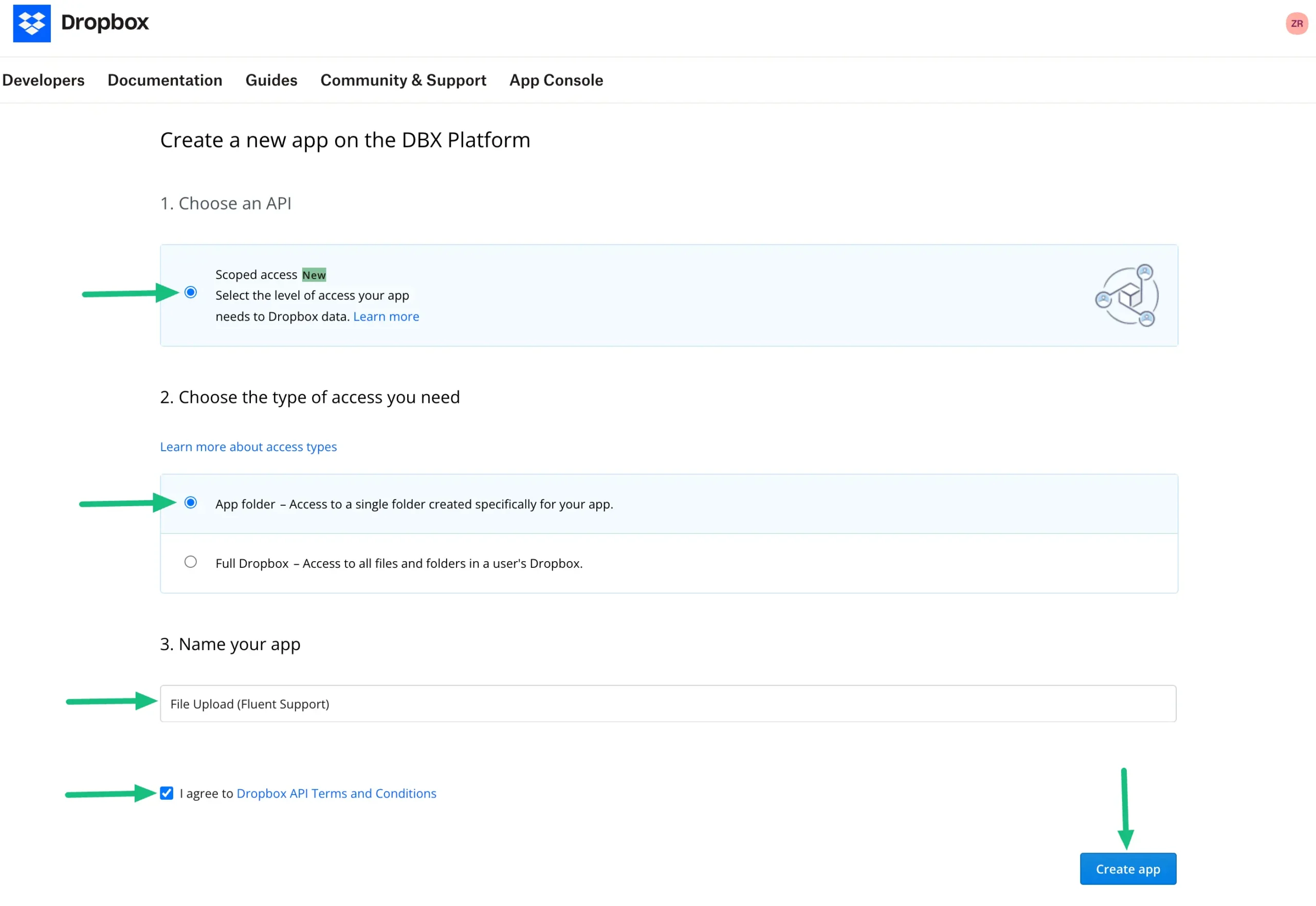
In the “Choose an AP I” select Scoped Access and in the “Choose the type of access you need ” select App folder.
Then, give a name to your app, agree with the terms and conditions if you want, and finally click the Create app button.
Configure Dropbox Settings
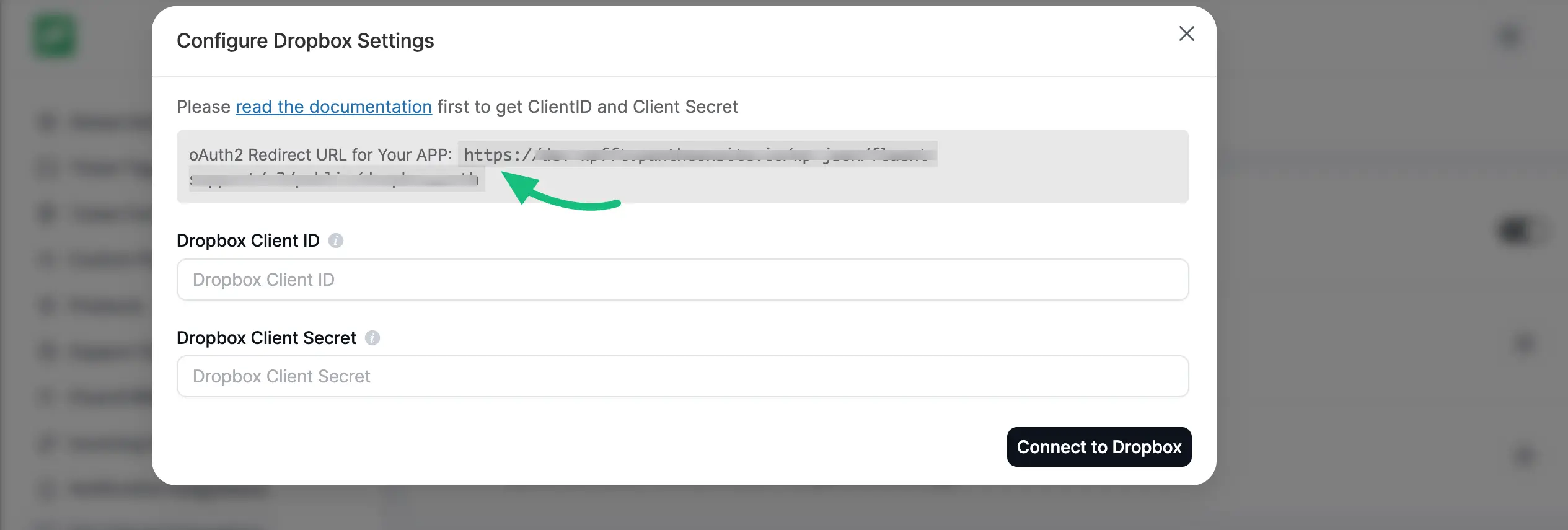
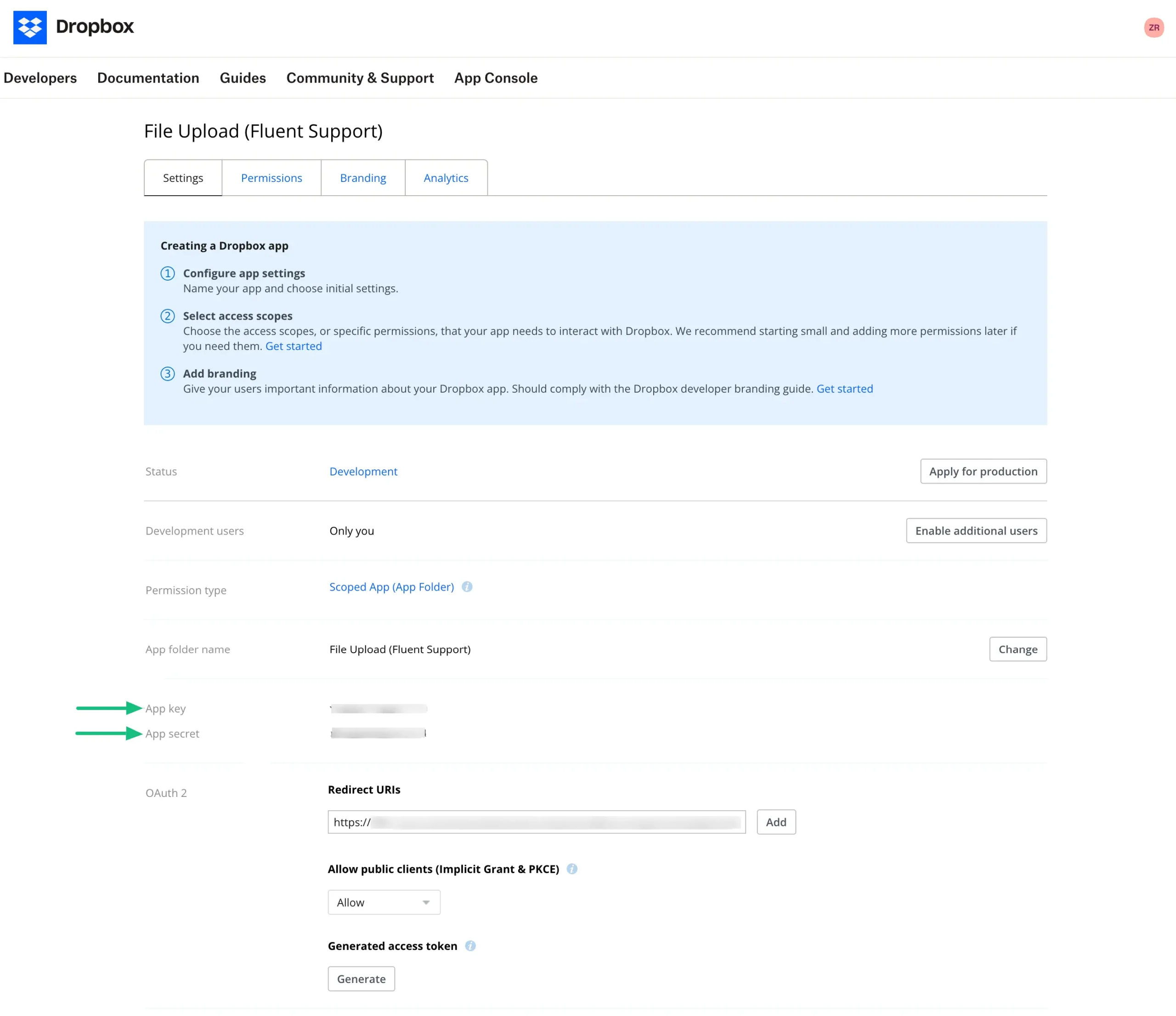
Your Dropbox App Settings page will appear where you must provide an authorized OAuth2 Redirect URL and click the Add button.
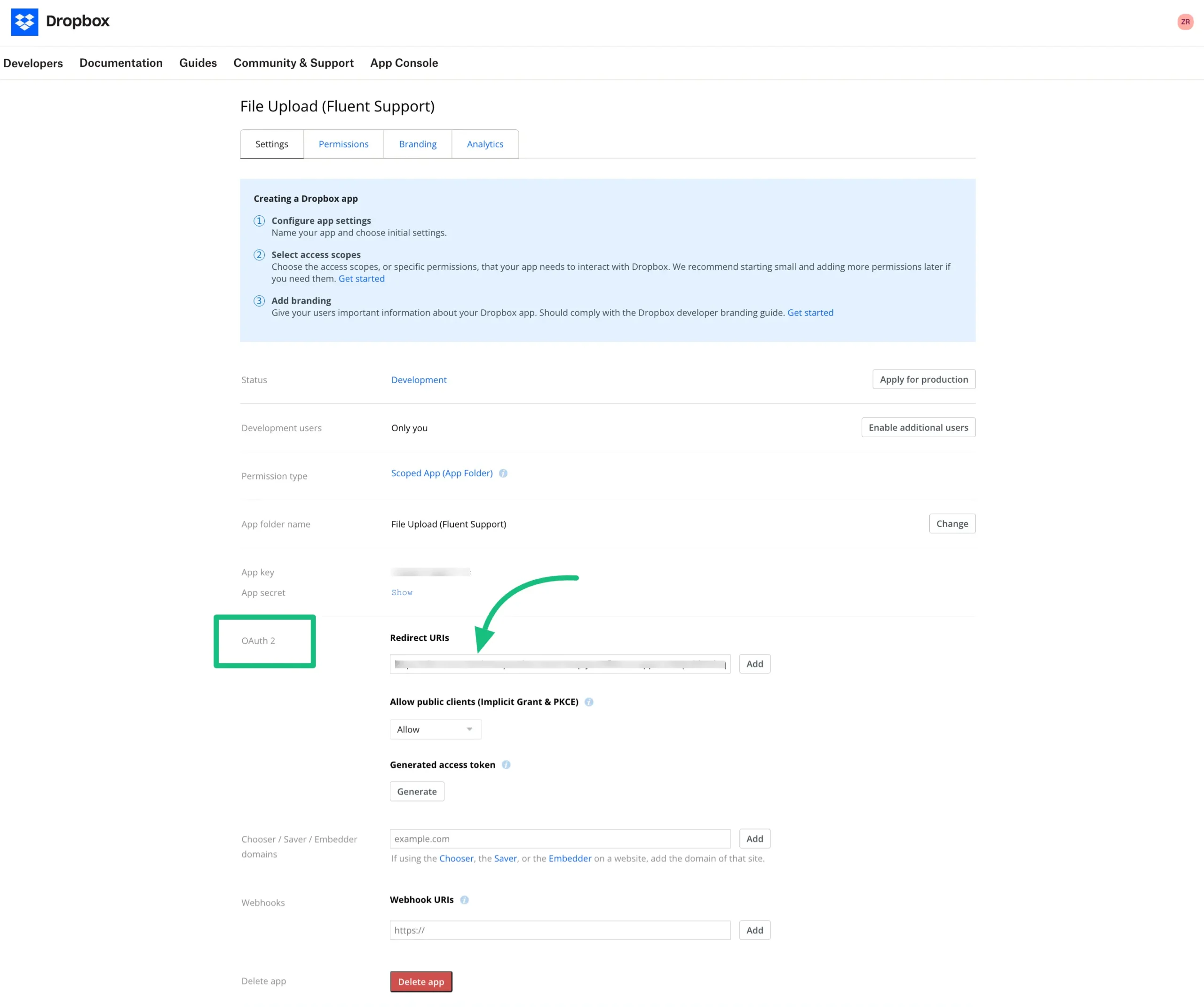
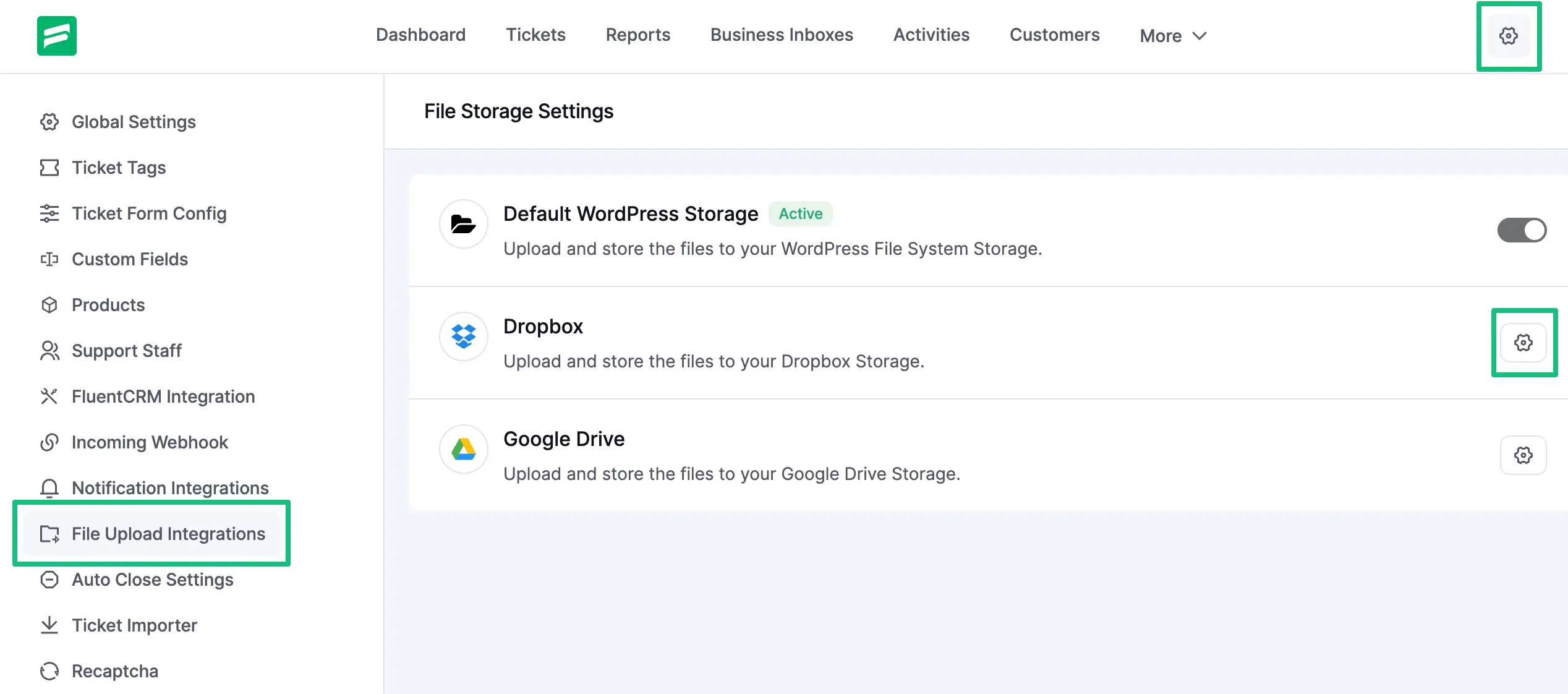
To get this OAuth2 Redirect URL , go to your Fluent Support Dashboard > Settings > File Upload Integration > Dropbox > Setting Icon > copy the OAuth2 redirect URL.
Dropbox App Permissions
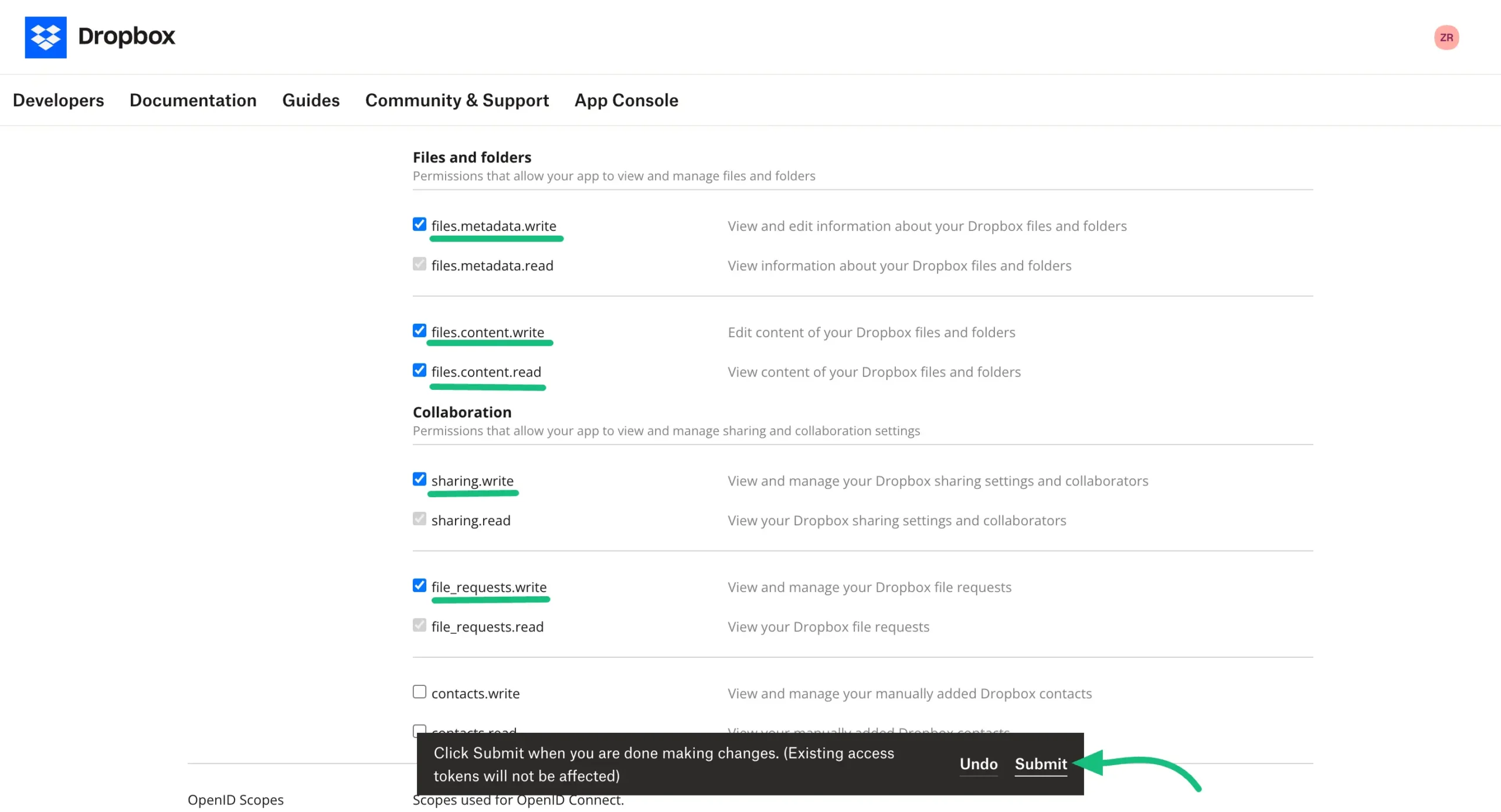
Now go to the Permissions section of your Dropbox app.
Select these areas (files.metadata.write, files.content.write, files.content.read, sharing.write, file_requests.write), and click the Submit button.
Obtain App Credentials
To obtain the app’s credentials, copy the App Key and App Secret from your Dropbox app settings.
Configure Dropbox in Fluent Support
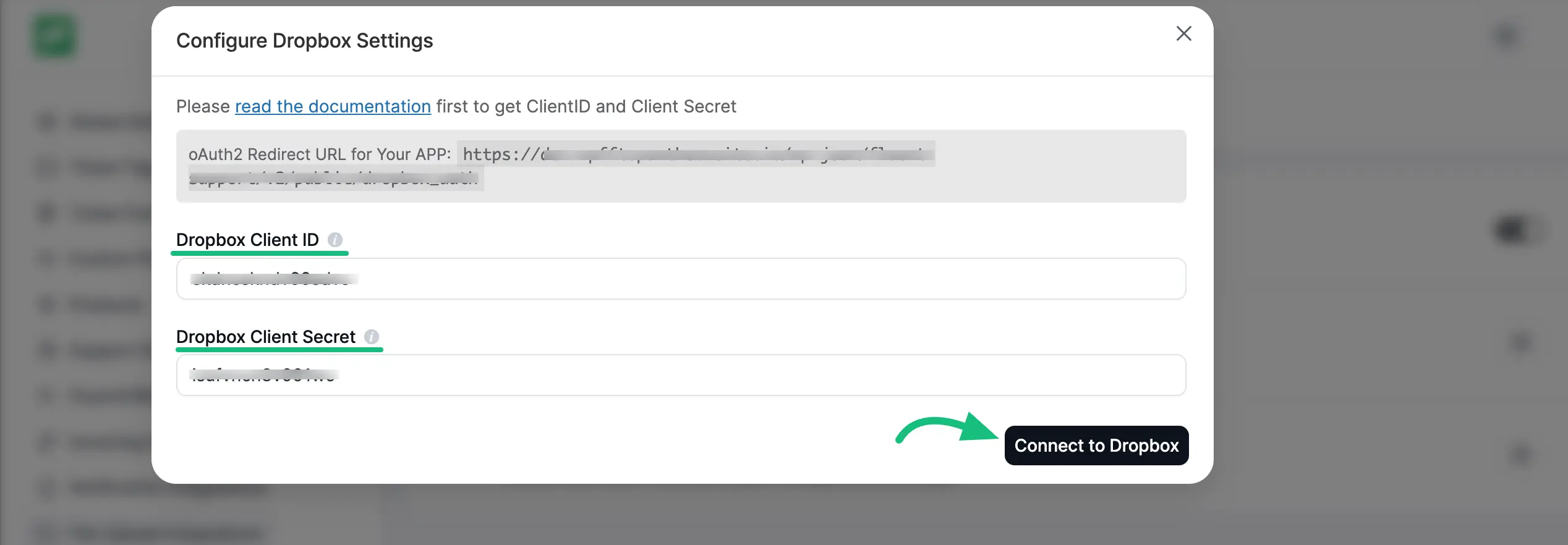
Return to your Fluent Support Dashboard, go to Settings, click the setting icon under File Upload Integrations, and a popup will appear.
Then, paste the App key & App Secret into the Client ID & Client Secret fields, and click the Connect to Dropbox button.
This is how you can integrate Dropbox with Fluent Support!