Appearance
Forwarding from Microsoft 365 / OWA
Integrating your Microsoft 365 (Outlook Web Access) email with Fluent Support allows you to automatically convert incoming emails into support tickets. This guide will walk you through the simple process of setting up email forwarding from OWA to your Mailbox of Fluent Support.
Forward from Microsoft 365 Outlook Web Access (OWA)
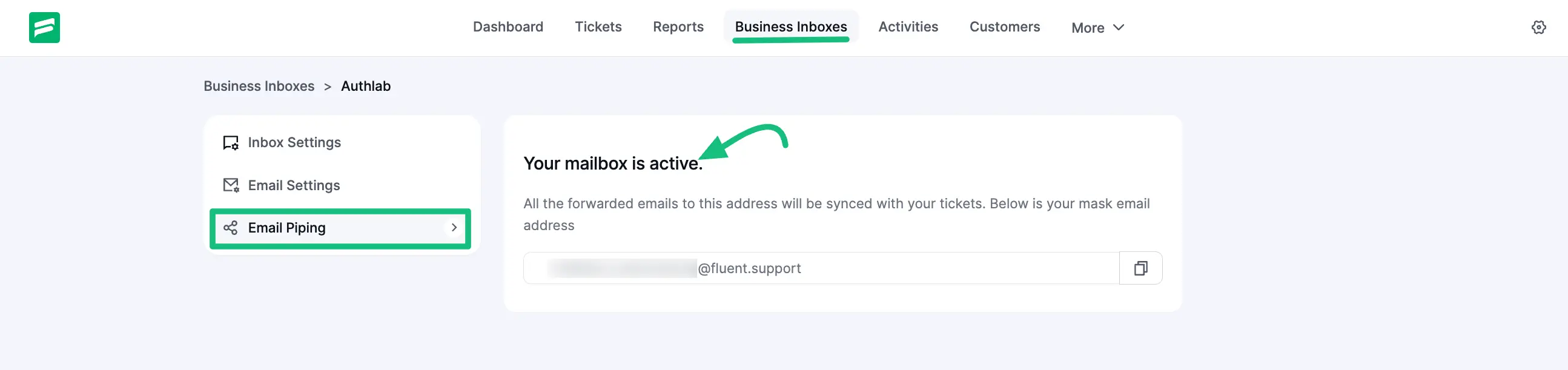
Before starting the procedure, ensure you have followed the first steps; setting up a new Business Inbox in Fluent Support and your Fluent Support Mailbox Address is ready. To learn how to create a Business Inbox and retrieve your forwarding address, please check this Documentation.
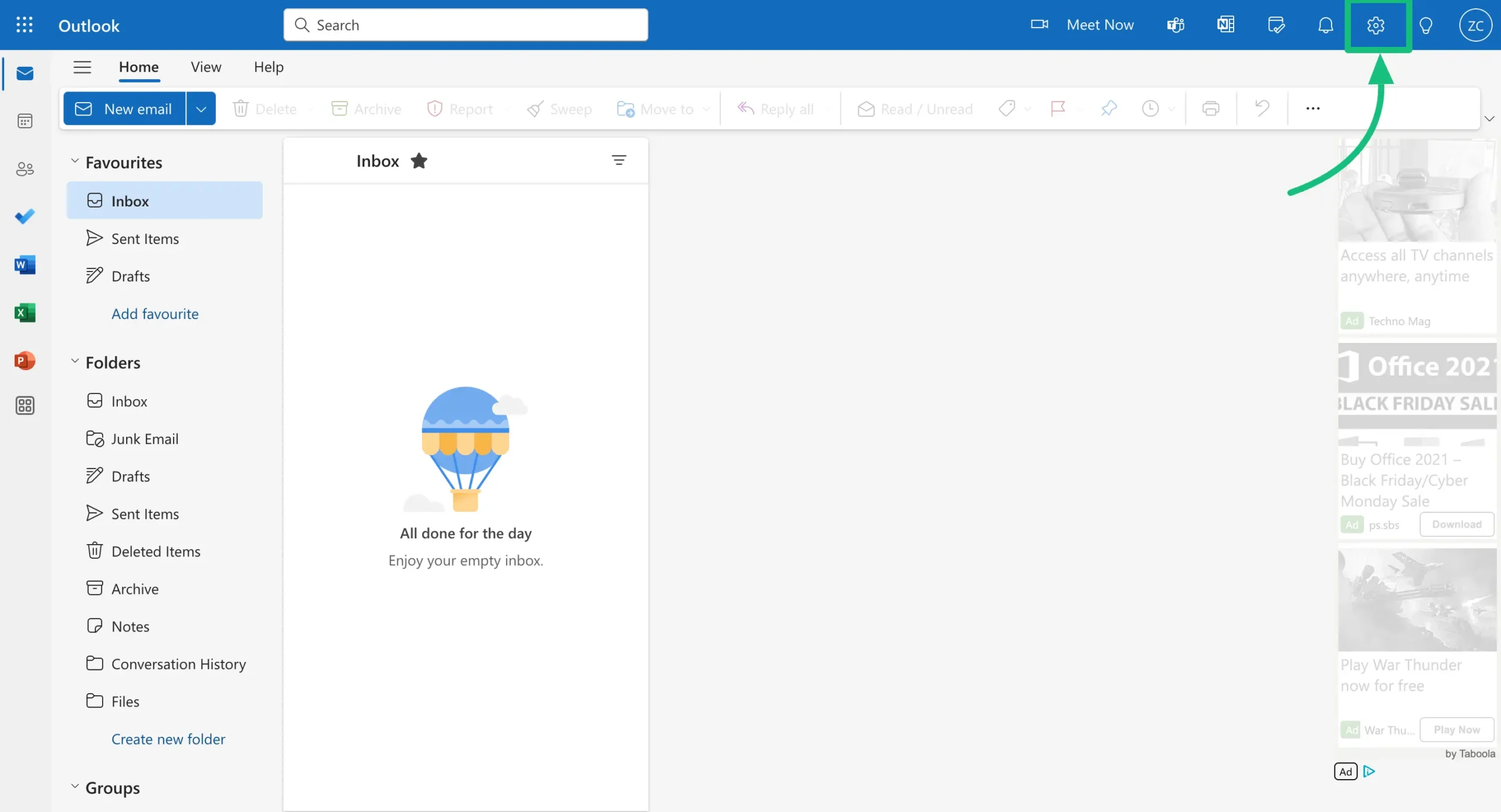
Log in to your Microsoft 365 Outlook Web Access by clicking here. Then, click on the Gear Icon located in the top right corner, and a Settings pop-up will appear.
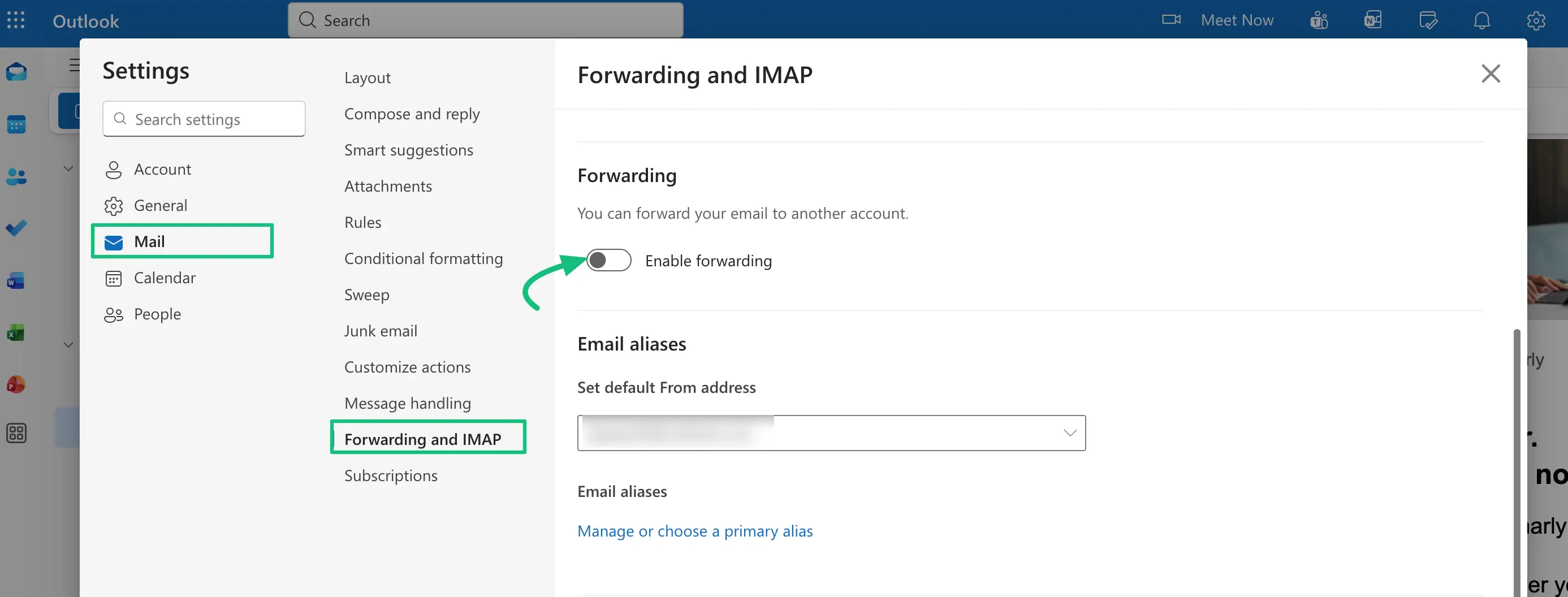
From the Mailbox Settings of your Outlook mailbox, select Mail , then Forwarding, and click on the Enable forwarding toggle.
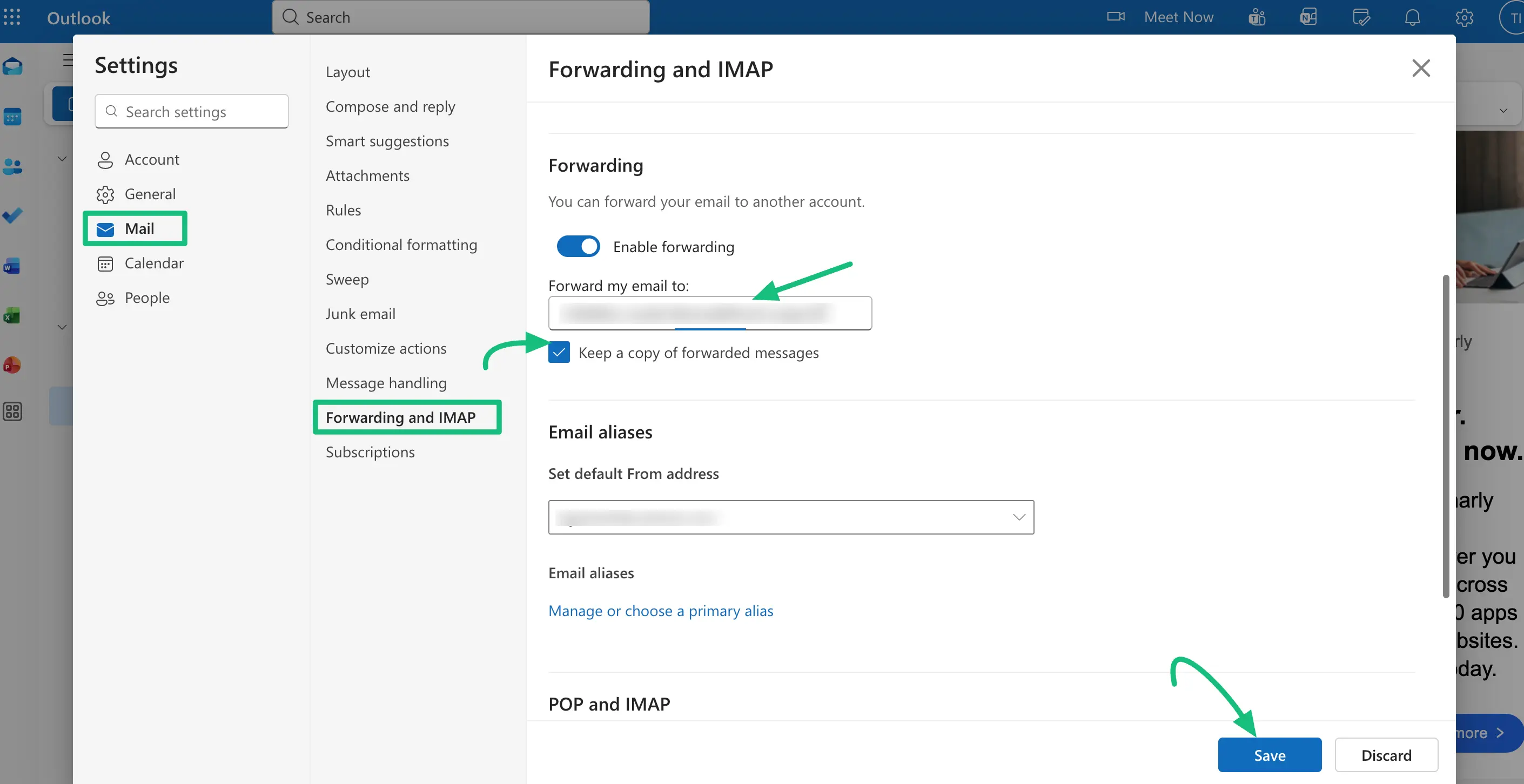
Now, paste the Mailbox Email Address you got from the Email Piping settings of Fluent Support into the ‘Forward my email to’ field. Also, we recommend enabling the Keep a copy of forwarded messages option.
Don’t forget to press the Save button once you’re done.
That’s it! Your email forwarding is set and the mailbox is activated! Now, when anyone sends an email to your email address, a new ticket will be created in Fluent Support.
If You Face Any Issues Regarding Mailbox activation
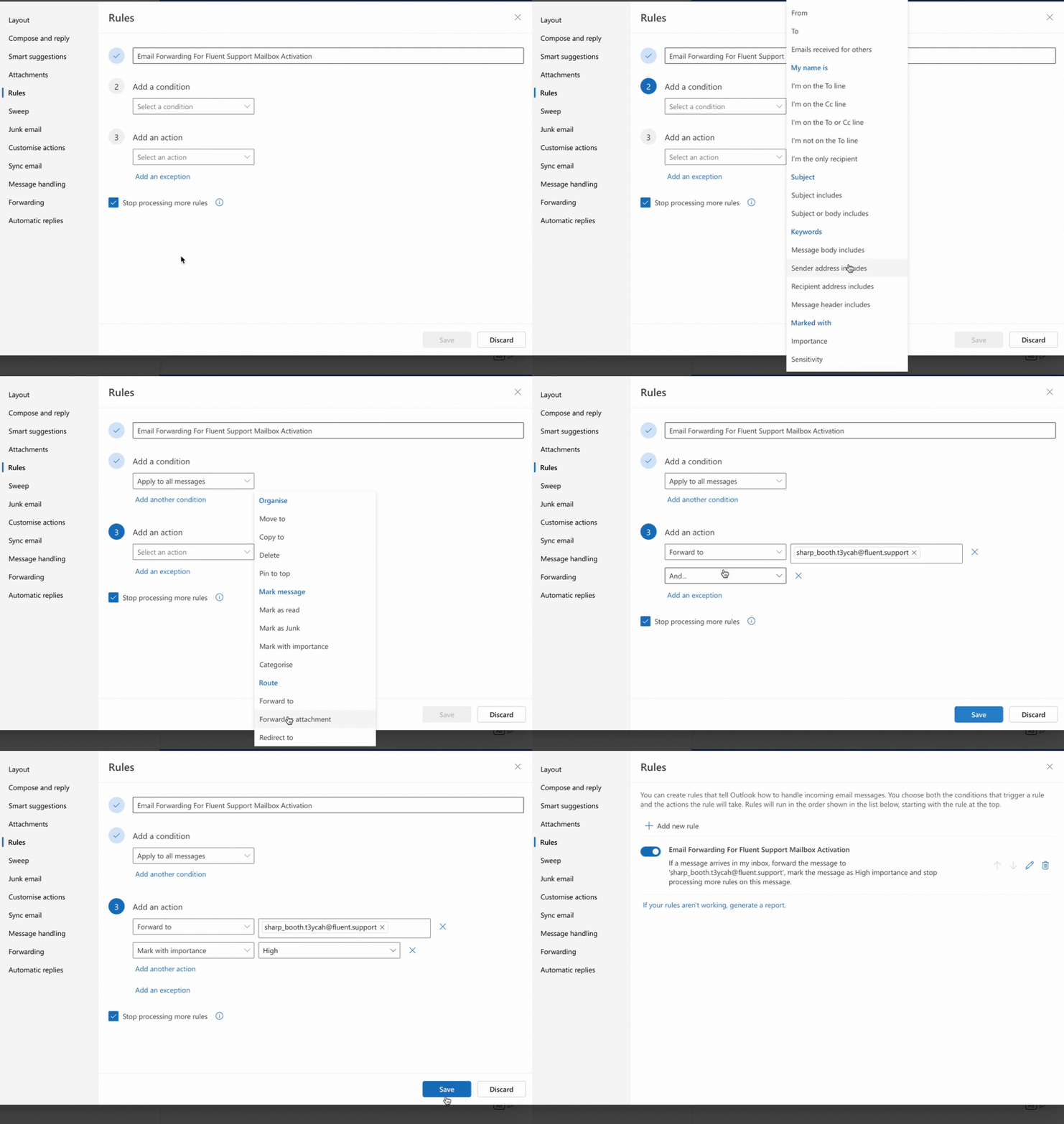
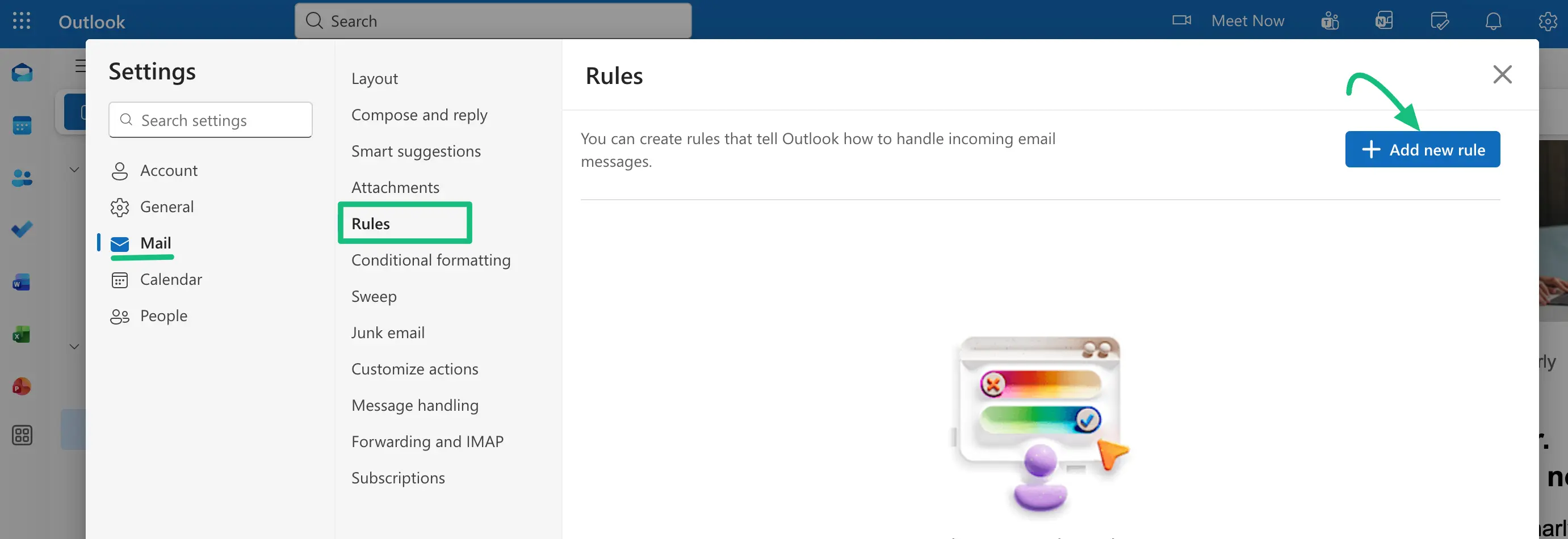
Go to the Mailbox Settings from your Outlook mailbox dashboard, select Mail , then Rules, and click the + Add new rule.
These are the fields under Rules that you need to fill in to add the rule.
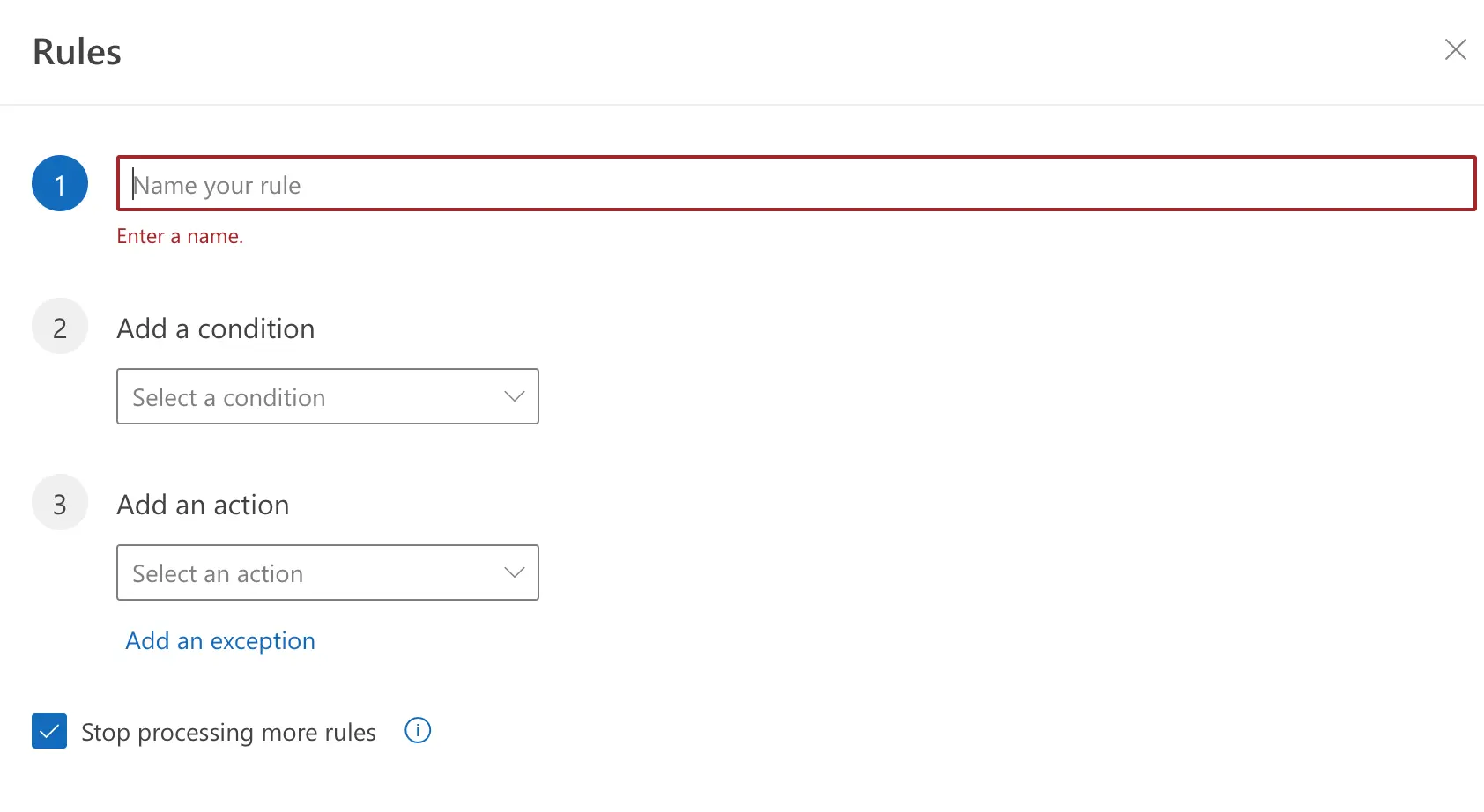
Refer to the GIF, to see the whole process of adding new rules at a glance. You can also test it to confirm that your mailbox is successfully activated for your users.