

Appearance
Setup Customer Support Portal With Global Settings
The Customer Portal is intended for direct use by end-users where users can view & use the dashboard to submit tickets. This article will guide you to set up your Customer Portal with Global Settings in Fluent Support.
Accessing Global Settings
To find the Global Settings for setting up the portal, follow the steps below:
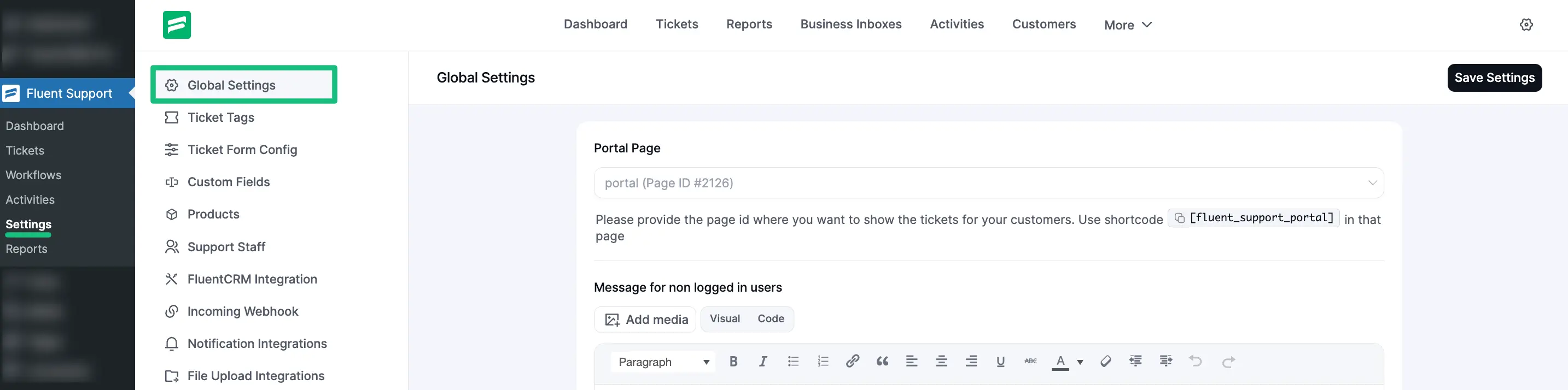
Go to Settings from your Fluent Support Dashboard and click on Global Settings from the left sidebar.
This will open the Global Settings page, where you can configure the portal page for your customers.
Remember: Always press the Save Settings button in the top right corner after finishing your customization to save your changes. Otherwise, changes will not appear in your Customer Portal.
Set up Customer Support Portal
You will find the following options in Global Settings to configure your Fluent Support Customer Portal:
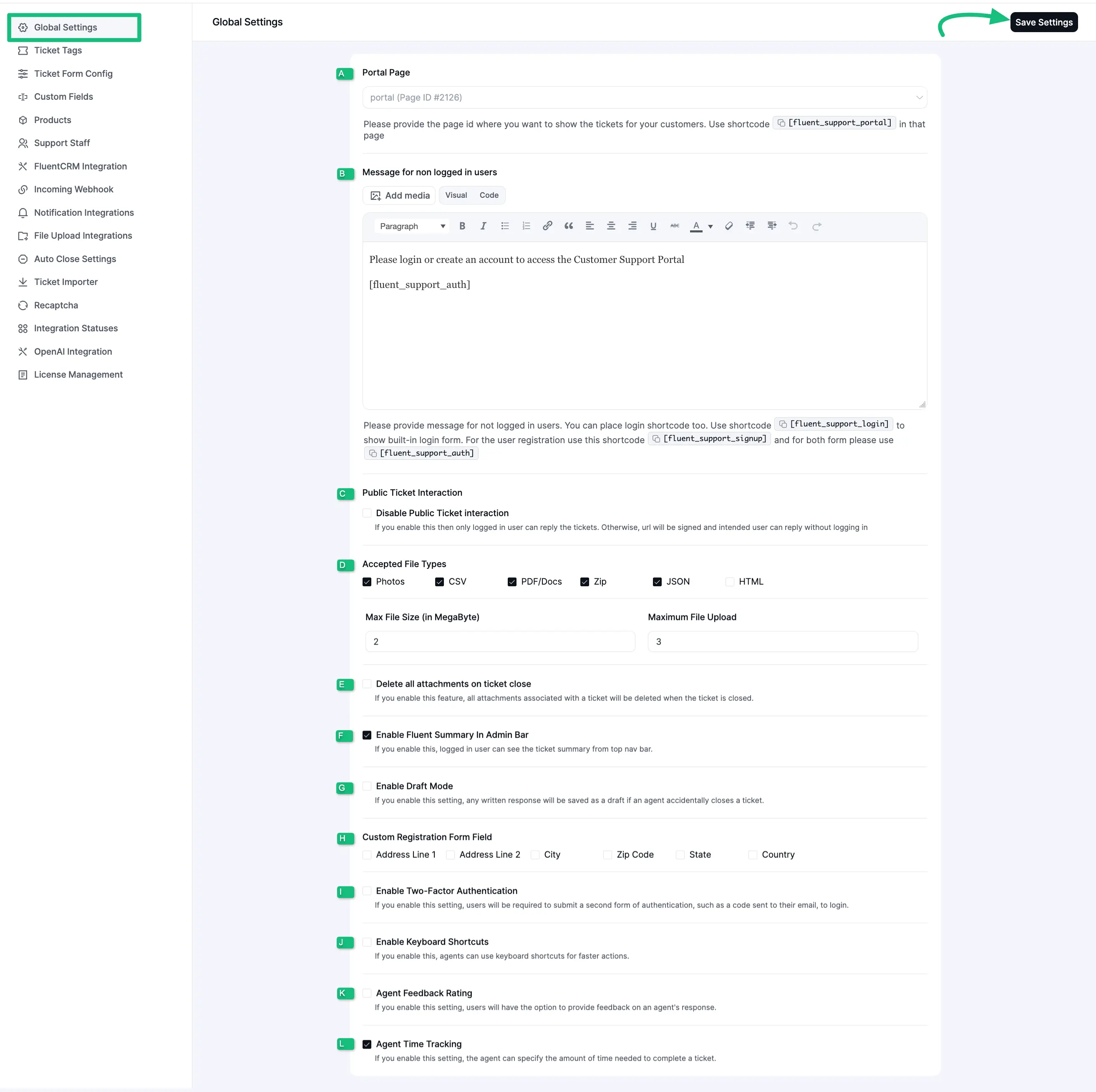
A. Portal Page
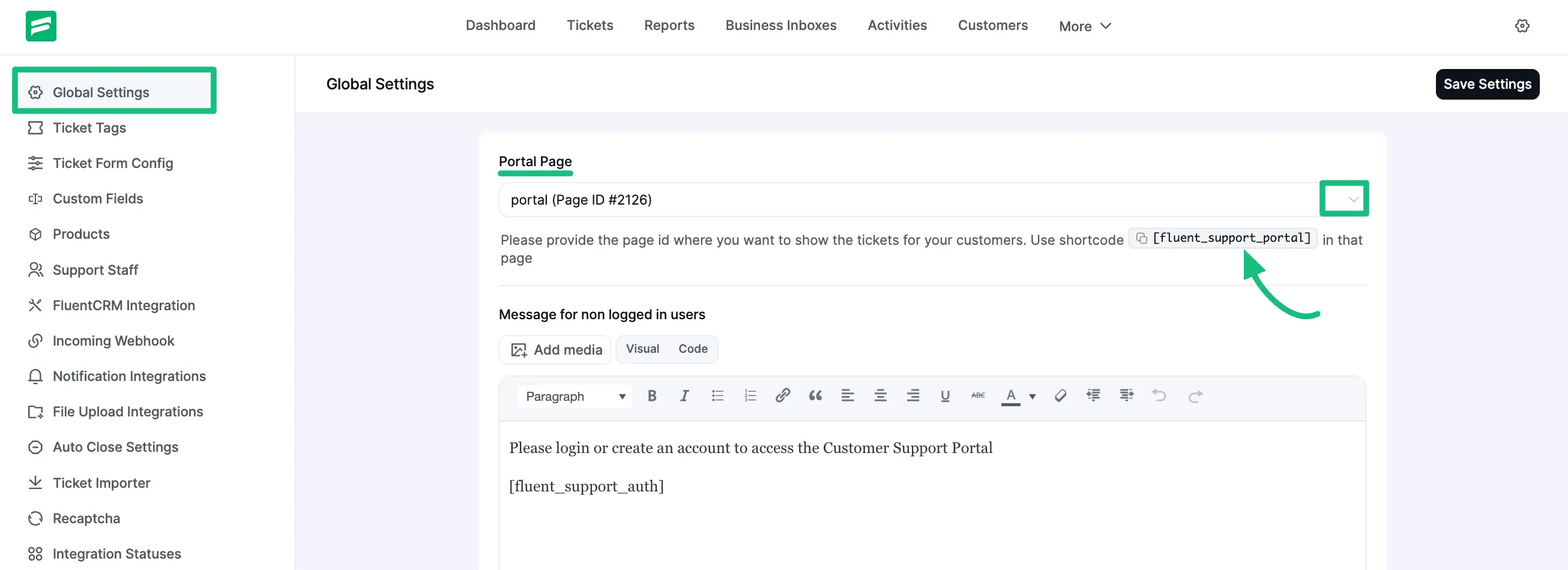
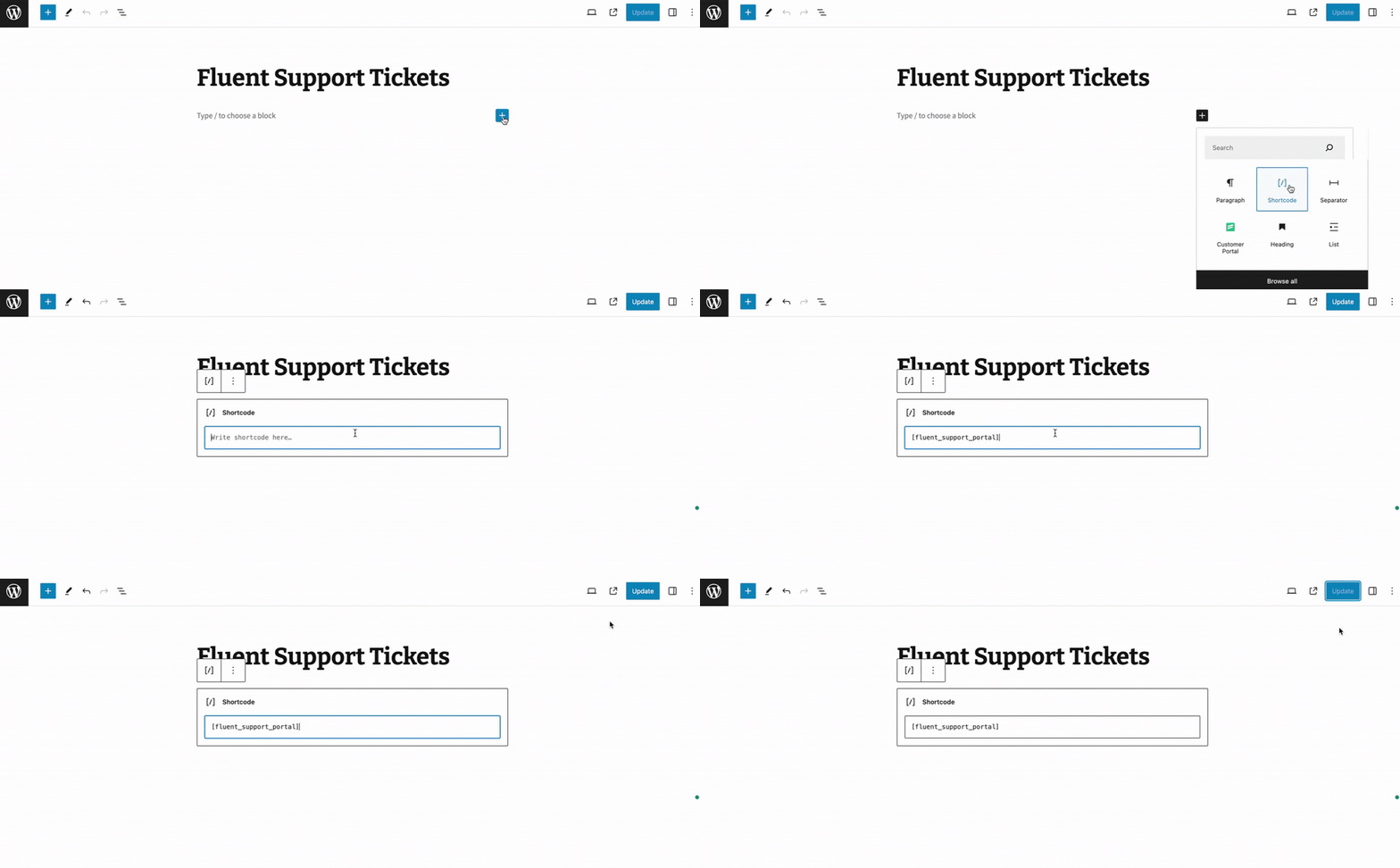
In the ’Portal Page’ option, you can select the Page where you want to show the Support Portal for your customers to submit their tickets. You can select your desired page in two different ways and these are shown in the GIFs below —
- Select the desired page directly from the Dropdown option. Or, copy the Shortcode given just below the Portal Page.
- And, paste it manually on your Desired page.
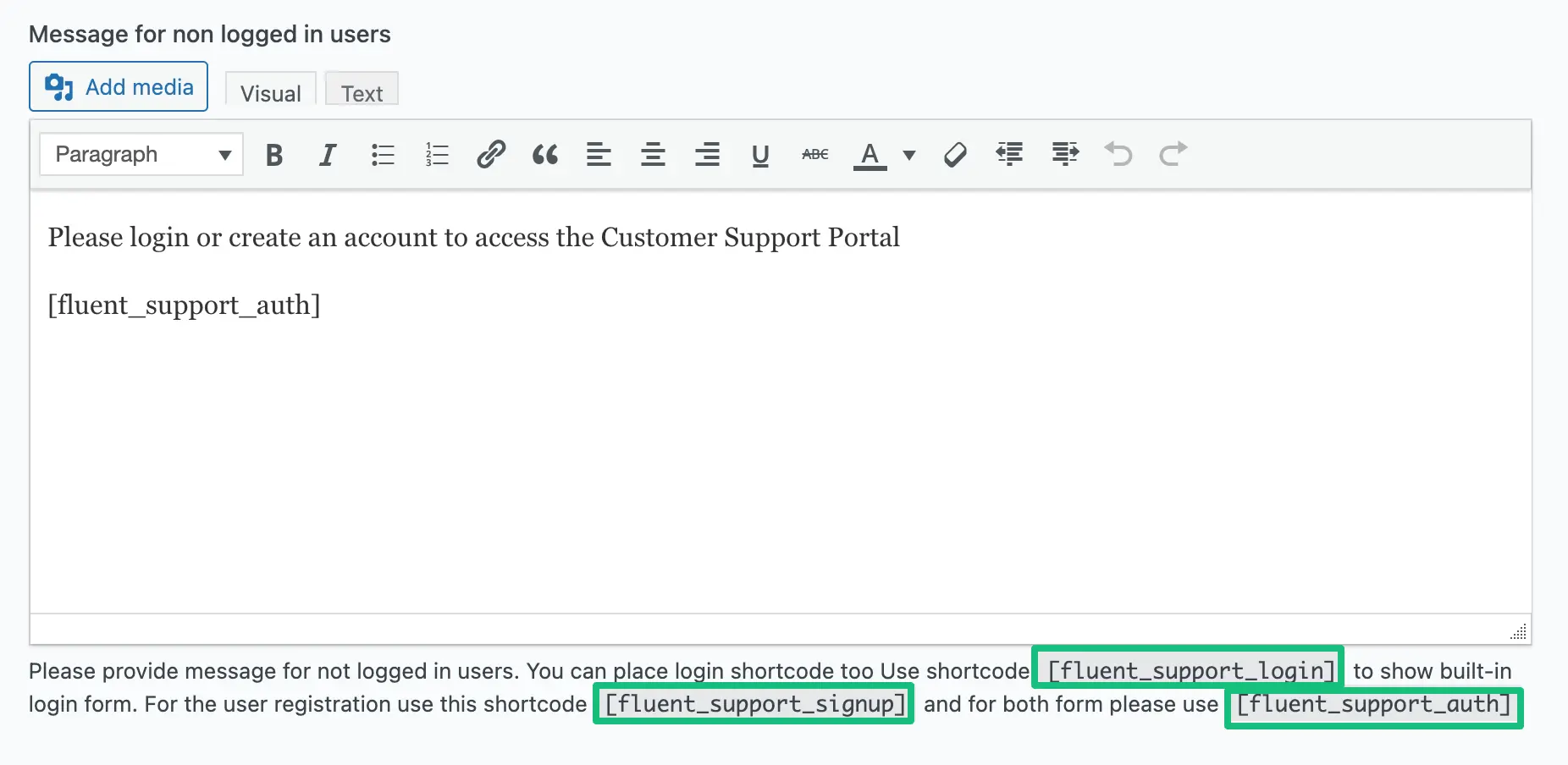
B. Message for non-logged-in users
In this option, you can customize certain texts for the users who have not logged in.
- You will see a default message (Please login or create an account to access the Customer Support Portal) has been added which you can edit anytime according to your need.
- Also, you can use different Shortcodes provided below to show different Forms.
To know the details of these below-mentioned Shortcodes, check this Documentation.
C. Disable Public Ticket Interaction
Enabling ‘Disable Public Ticket Interaction’ allows only logged-in users to reply to tickets. If you uncheck the option, users can reply to tickets without logging in using a signed URL.

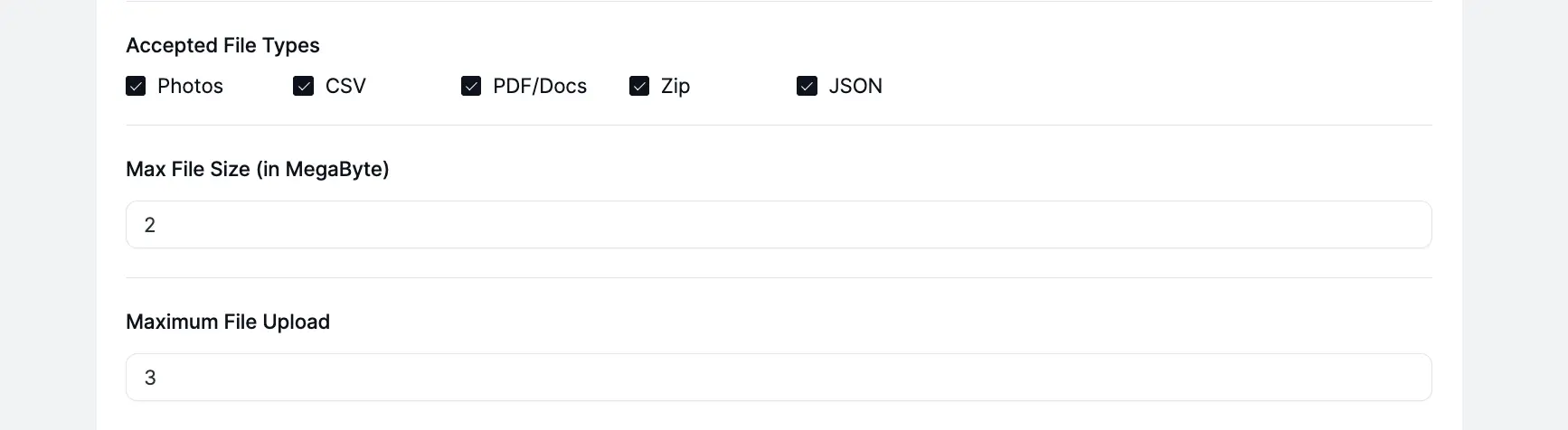
D. Accepted File Types
Fluent Support accepts photos, CSV, PDF/Docs, Zip, and JSON files. You can also set the maximum file size and number of files to upload.
To learn the details about file Attachment Regulations , read this Documentation.
E. Delete all attachments on ticket close
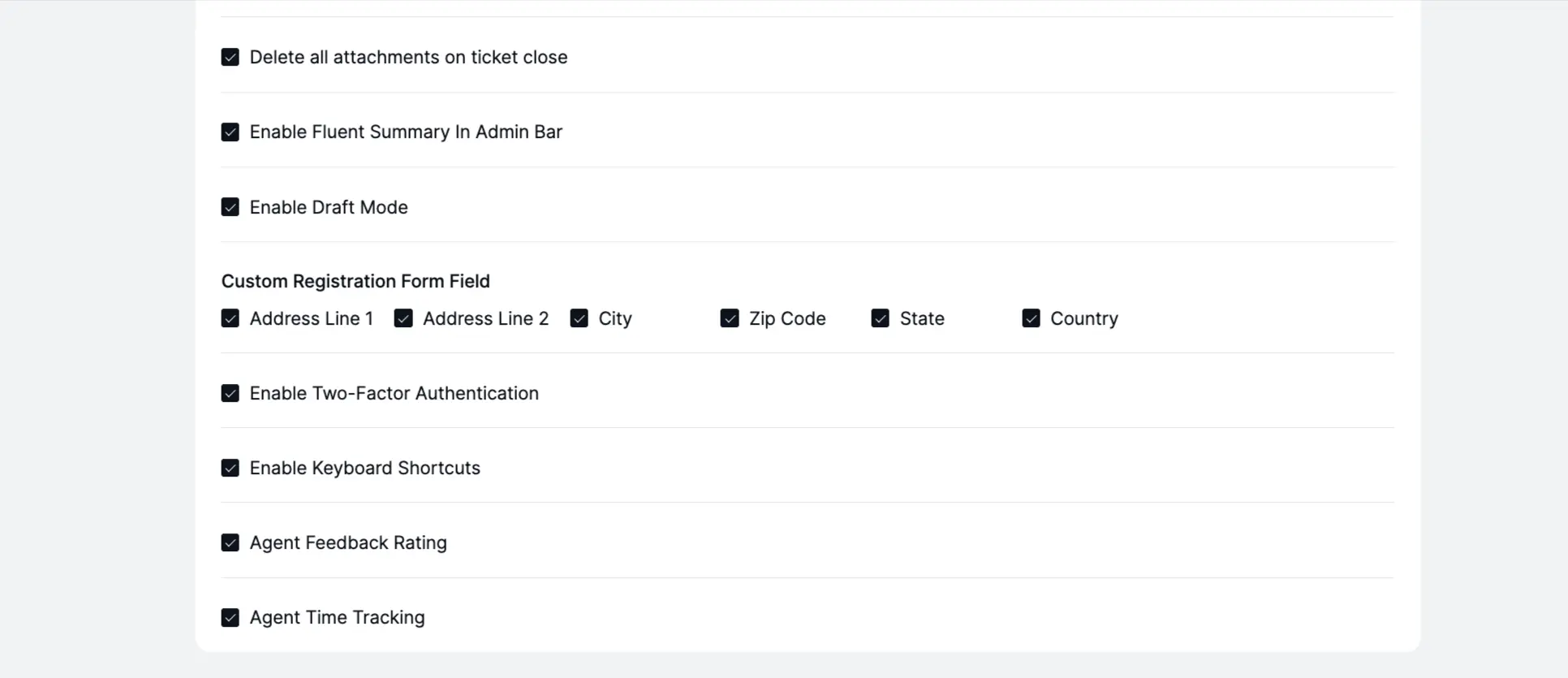
If you enable the ‘Delete all attachments on ticket close’ option, it will automatically delete all attachments associated with a particular ticket when it is closed.
F. Enable Fluent Summary in Admin Bar
Enable the ‘Fluent Summary in Admin Bar’ option allows users to see a ticket summary from the top nav bar.
G. Enable Draft Mode
The ‘Enable Draft Mode’ allows agents to save responses automatically as drafts to avoid accidental ticket closures or reply to the ticket later.
H. Customer Registration Form Field
The ‘Customer Registration Form Field’ allows agents to get the information in the customer registration form using the below-mentioned fields.
I. Enable Two-Factor Authentication
If you enable the ‘Enable Two-Factor Authentication’ option, this will require customers to enter a verification code sent to their email whenever they try to log in to the customer portal.
J. Enable Keyboard Shortcuts
Enabling the ‘Enable Keyboard Shortcuts’ option allows agents to use keyboard shortcuts for faster actions.
K. Agent Feedback Rating
Enabling the ‘Agent Feedback Rating’ option allows users to provide feedback on agent responses.
L. Agent Time Tracking
Enabling the ‘Agent Time Rating’ option allows agents to set the amount of time a user needs to complete a ticket.
Always press Save Settings after finishing all the customization in your Global Settings to save it. Otherwise, changes will not appear in your Customer Portal.