Appearance
Saved (Templated) Replies
This article will guide you through the process required to create the Saved (Templated) Replies i.e., create specific replies for tickets and save it as a template to save time by avoiding the redundancy of repeatedly typing similar replies. And, the Saved Replies feature allows you to do it easily using Fluent Support.
Saved Replies
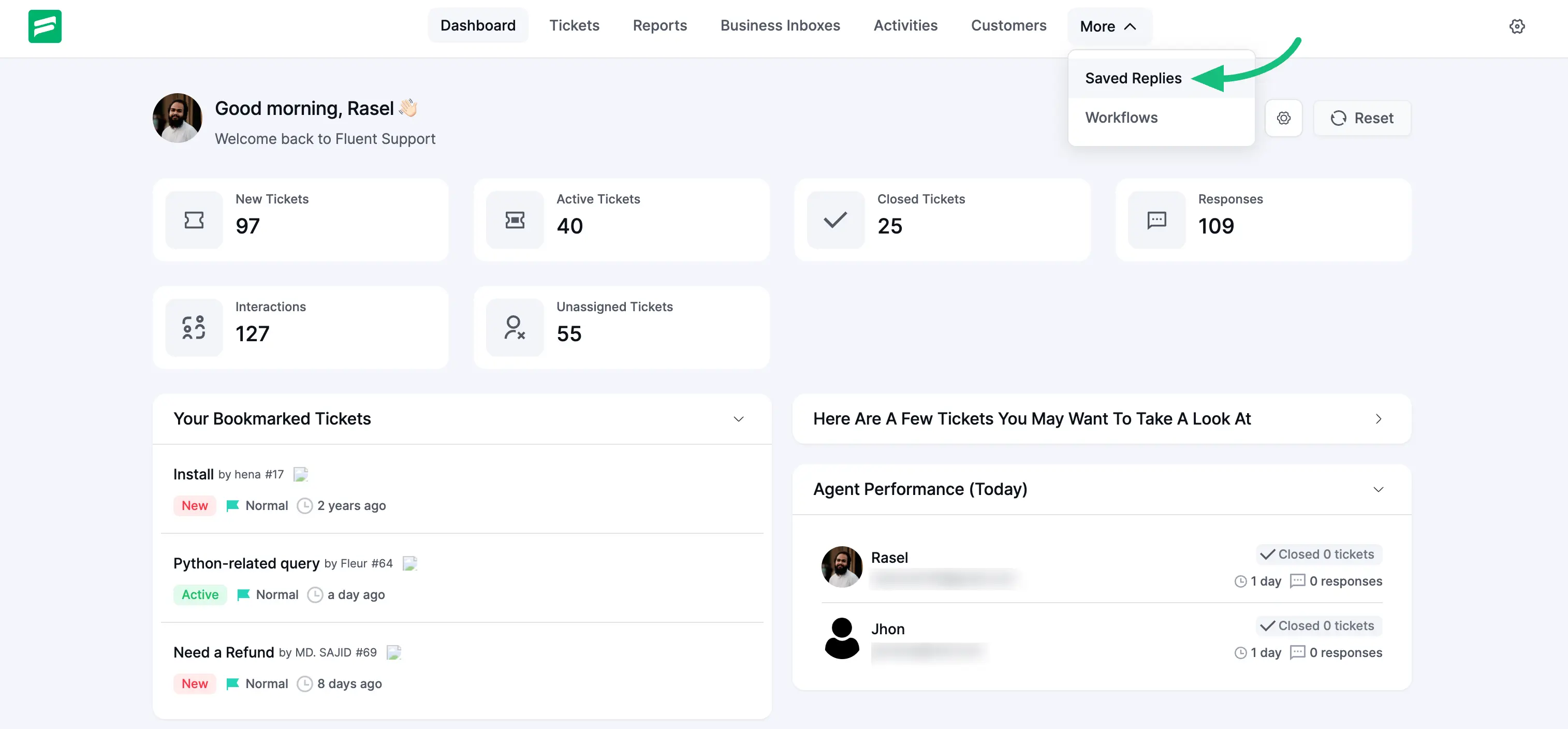
First, go to the Fluent Support Dashboard & click on the Saved Replies.
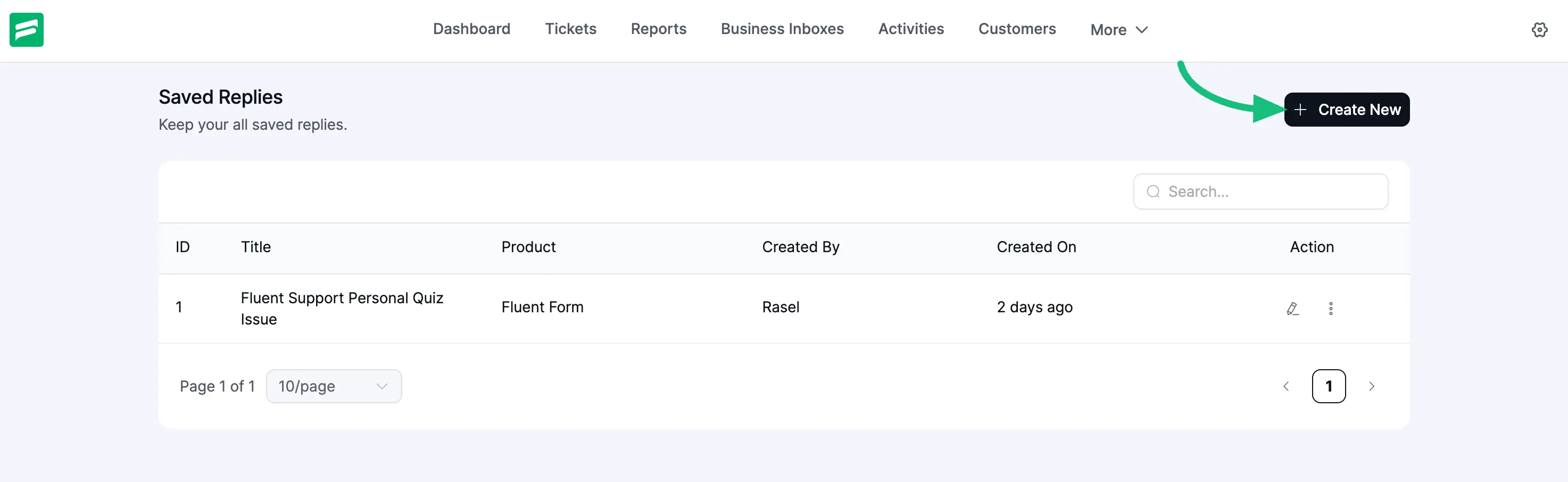
To create a new reply that will be saved as a template, click on + Create New and a pop-up page will appear.
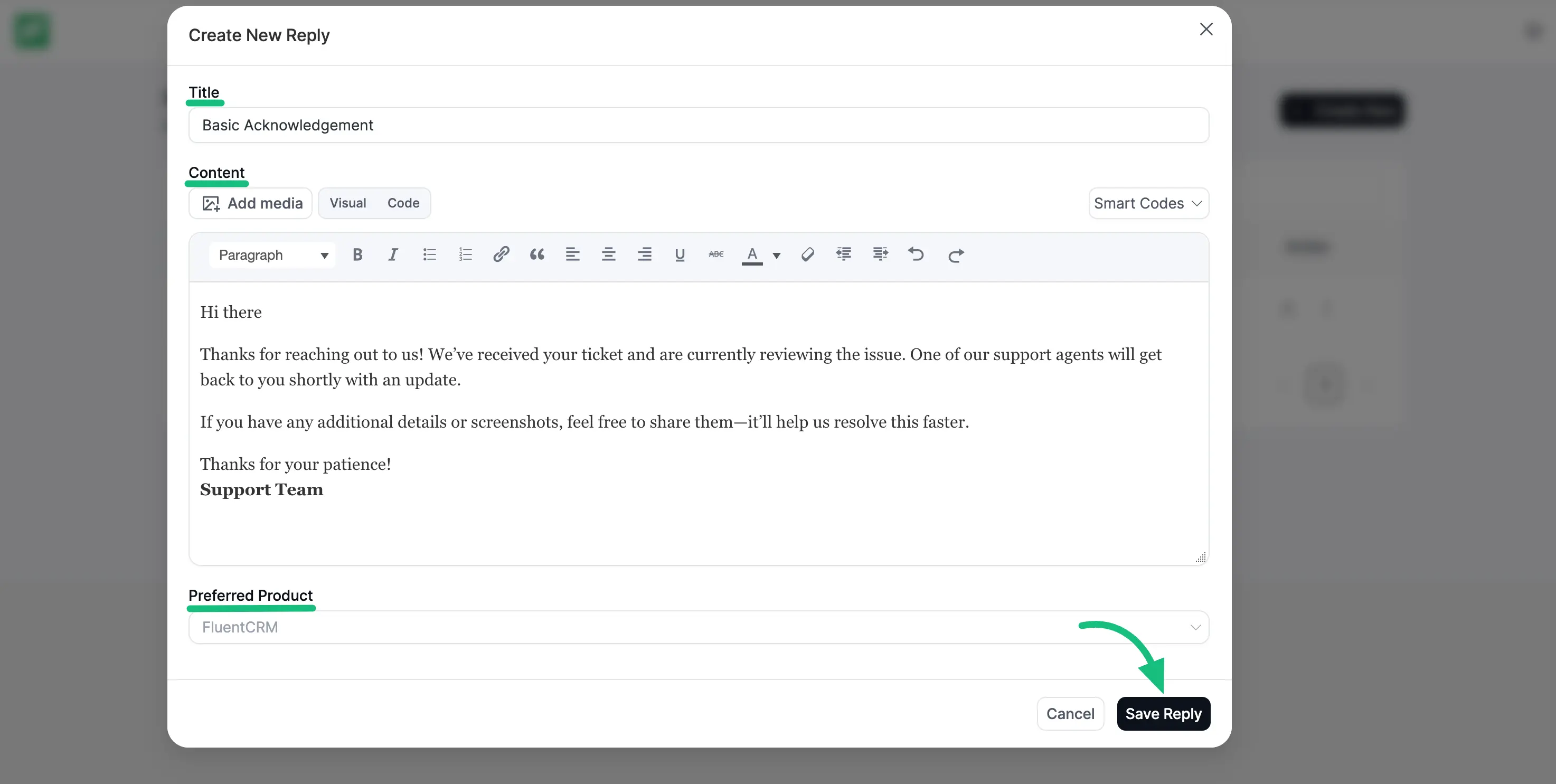
Add the reply Title and Content and choose your preferred Product from the dropdown. Once you’re done, click Save to save the reply.
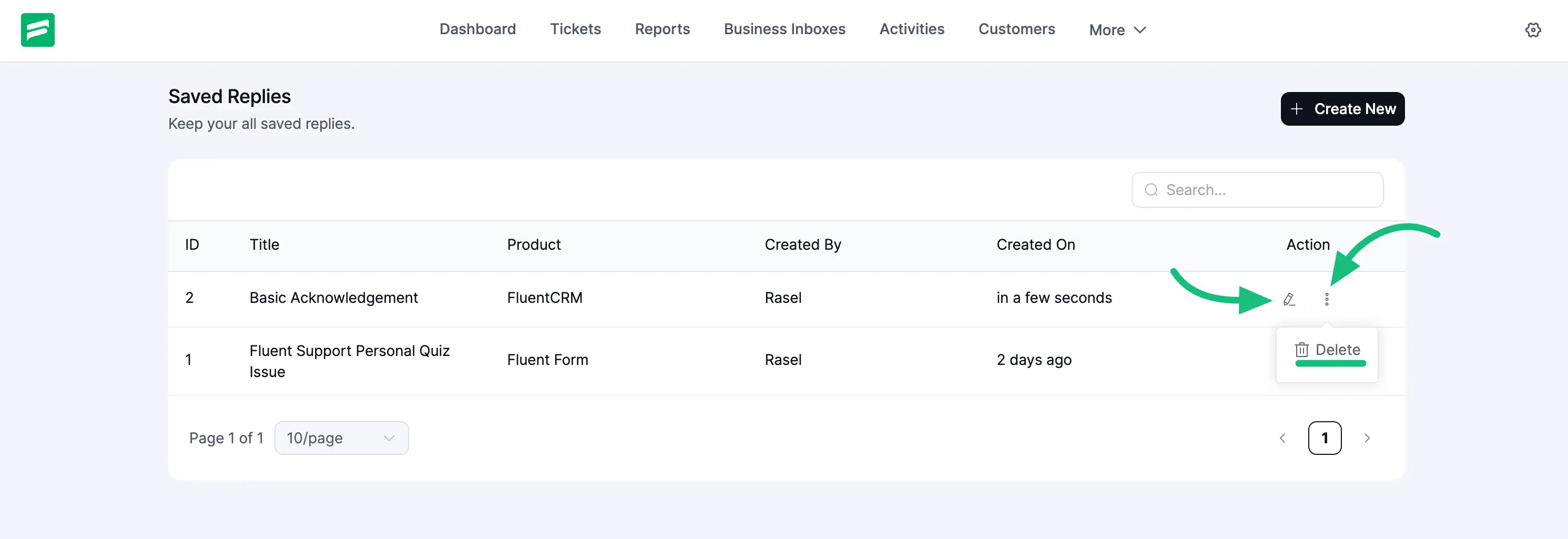
Also, you can Edit/Delete the existing Saved Relies by clicking the Pencil/Trash icons placed on the right-hand side under the Actions column.