

Appearance
File Attachment Regulations
This article will guide you through the process of configuring File Attachment Settings for the Support Portal Page in Fluent Support. It covers the accepted file formats, size limits, and upload restrictions for tickets.
File Attachment Settings
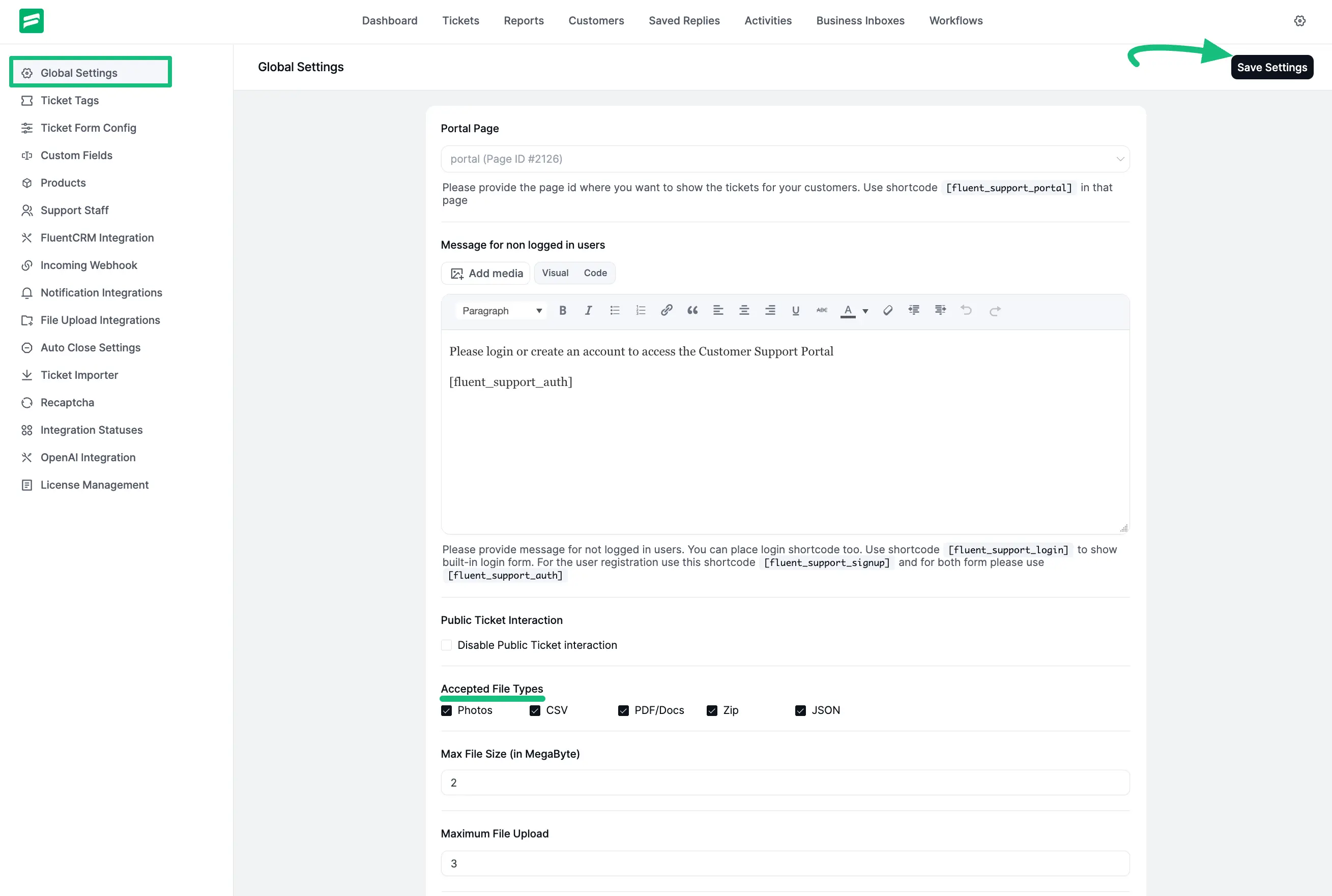
Go to Settings from your Fluent Support Dashboard and click on Global Settings from the left sidebar.
Scroll down to the Accepted File Types section. Here, you will find the configuration options for files that users can upload when submitting or replying to a ticket.
Supported File Type
You can enable or disable specific file formats by checking the respective boxes. The available options are:
- Photos (Image)
- CSV
- PDF/Docs
- Zip
- JSON
Size and Quantity Limits
You also have the option to control the size and number of files a user can upload:
- Max File Size (in MegaByte): Define the maximum size limit for a single file (e.g., 2 MB).
- Maximum File Upload: Set the maximum number of files that can be attached to a single ticket or reply (e.g., 3 files).
If you want you can add more Attachment Types using Shortcode if needed. To learn how to add Attachment Types, check this Documentation.
File Storage Structure
To ensure all attachments are properly organized, Fluent Support automatically creates a dedicated folder for each support ticket when a file is first uploaded. This keeps all attachments related to a single ticket together.
Where are these folders stored?
The storage location depends on your Fluent Support configuration:
- Default Storage (Local): By default, these ticket-specific folders are created within your WordPress site’s local storage (directory: wp-content/uploads/fluent-support), using the unique ticket ID as the folder name.
- Third-Party Storage Integrations: If you have configured an external storage integration (such as Google Drive, Dropbox, etc.), Fluent Support will create these individual folders on that connected cloud service instead.
Remember Ensure you always press the Save Settings button in the top right corner after making changes to the File Attachment Settings. Otherwise, the changes will not appear in your Support Portal.